Ever opened an email’s headers, spotted spf=pass, and wondered what actually passed?
It’s easy to read that as “this email is safe.” What it tells you is narrower: the connecting mail server was authorized to use the domain checked by SPF.
To understand how the receiving email server reaches that result, let’s follow an email from our domain, deathdiaries.com, through Zoho Mail to Gmail. Along the way, you’ll see what MX records do, where an SPF policy lives, and how to inspect the DNS lookups yourself.
Start with these two questions:
- MX: where should a sender deliver mail for this domain?
- SPF: may this connecting server send using this domain?
1. MX tells the sender where to deliver mail
When configuring email for our domain, we published MX records pointing to Zoho:
10 mx.zoho.com.
20 mx2.zoho.com.
50 mx3.zoho.com.
Think of them as delivery destinations. Someone sending to an address at deathdiaries.com uses these records to find our receiving mail servers.
Each entry has a preference number and a hostname, also called a fully qualified domain name (FQDN). Lower numbers are preferred. The additional entries provide alternative destinations.
Now turn the direction around. If Zoho is sending our message to Gmail, it needs Gmail’s MX records.
Open Google Admin Toolbox Dig, enter gmail.com, and select MX. In our lookup, the preferred destination was gmail-smtp-in.l.google.com, with preference 5.
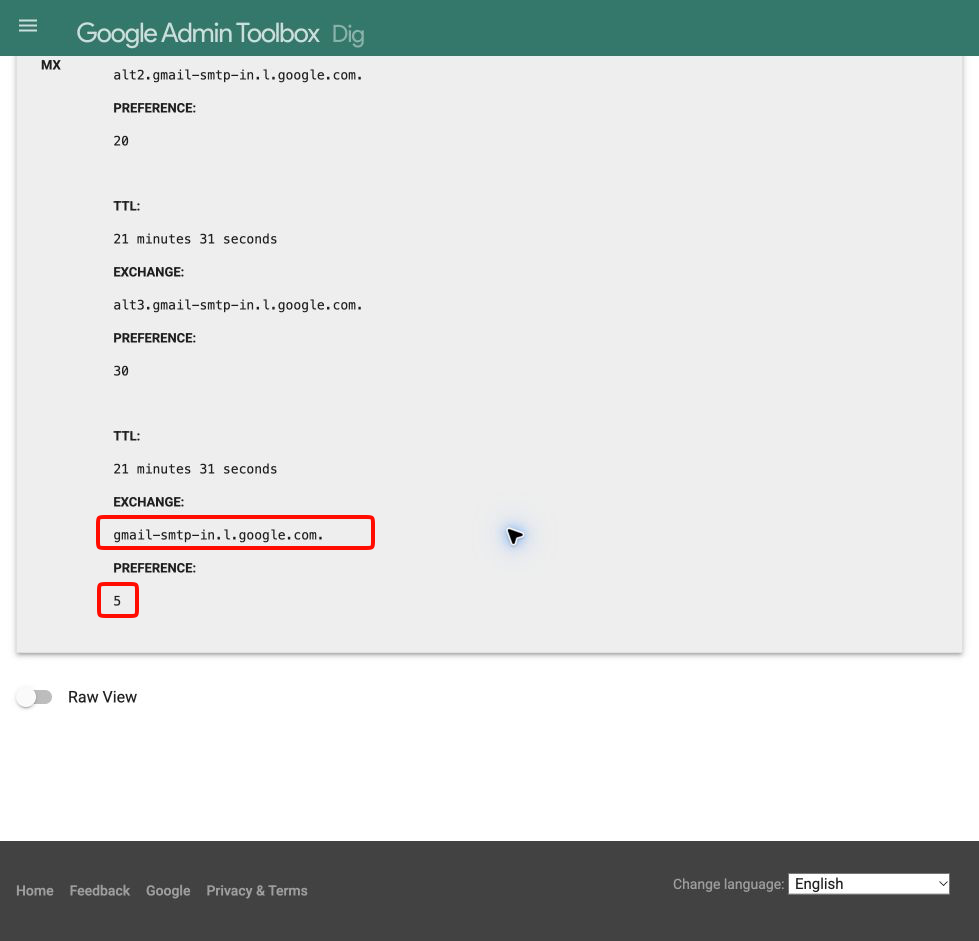
The sender still needs an IP address to connect to that hostname. It resolves an A record for IPv4 or an AAAA record for IPv6, as described in RFC 5321, section 5.
You can inspect those two steps in a terminal:
dig gmail.com MX +short
dig gmail-smtp-in.l.google.com A +short
Keep the direction in mind: our MX records describe where we receive email. Gmail’s MX records describe where Gmail receives email. They don’t identify the particular outgoing Zoho server used for our message.
2. Find the two inputs for the SPF check
When Gmail receives a connection, it knows the connecting server’s IP. In our delivered test email, its headers identified sender6-of-o55.zoho.com with IP 165.173.180.55.
The other input is the domain being checked. For the MAIL FROM SPF check, that comes from the envelope sender address.
The envelope sender is supplied during mail delivery and is used for handling delivery failures. It can differ from the visible From: address. In our test, its domain was deathdiaries.com.
Gmail therefore checks:
- Connecting IP:
165.173.180.55. - Envelope sender domain:
deathdiaries.com.
Notice which IP matters: it’s the mail server connecting to Gmail, rather than the laptop where you composed the email.
3. Retrieve the SPF policy from DNS
The policy itself lives in a DNS TXT record. The email’s headers contain the receiving email server’s recorded result, such as spf=pass or a Received-SPF: pass field.
Here’s where that setup appears in Zoho: Admin Console → Domains → deathdiaries.com → Email Configuration → SPF.
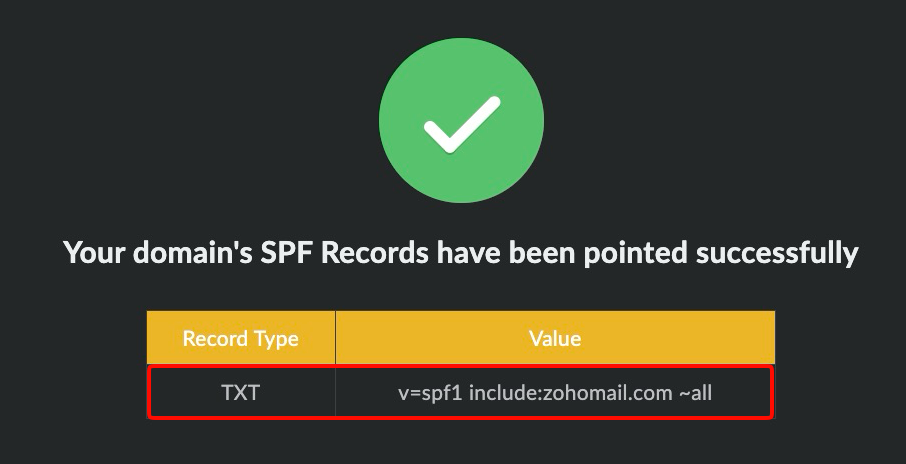
We published this TXT record through Spaceship, which manages our domain’s DNS. Zoho shows the configuration status; the receiving email server retrieves the policy through DNS when checking SPF.
To retrieve the policy, enter deathdiaries.com in Google Admin Toolbox and select TXT, or run:
dig deathdiaries.com TXT +short
Our answer included:
v=spf1 include:zohomail.com ~all
Read it in three parts:
v=spf1identifies this text as an SPF policy.include:zohomail.comtells the receiving email server to evaluate Zoho’s policy against the same connecting IP. If it returns pass, the include matches.~allproduces softfail if no earlier rule matches.
A domain can have other TXT records, including ownership verification records. At a given name, publish only one SPF policy and combine permitted senders within it. Zoho’s documentation covers that setup.
In Wireshark, the question and answer are separate packets:
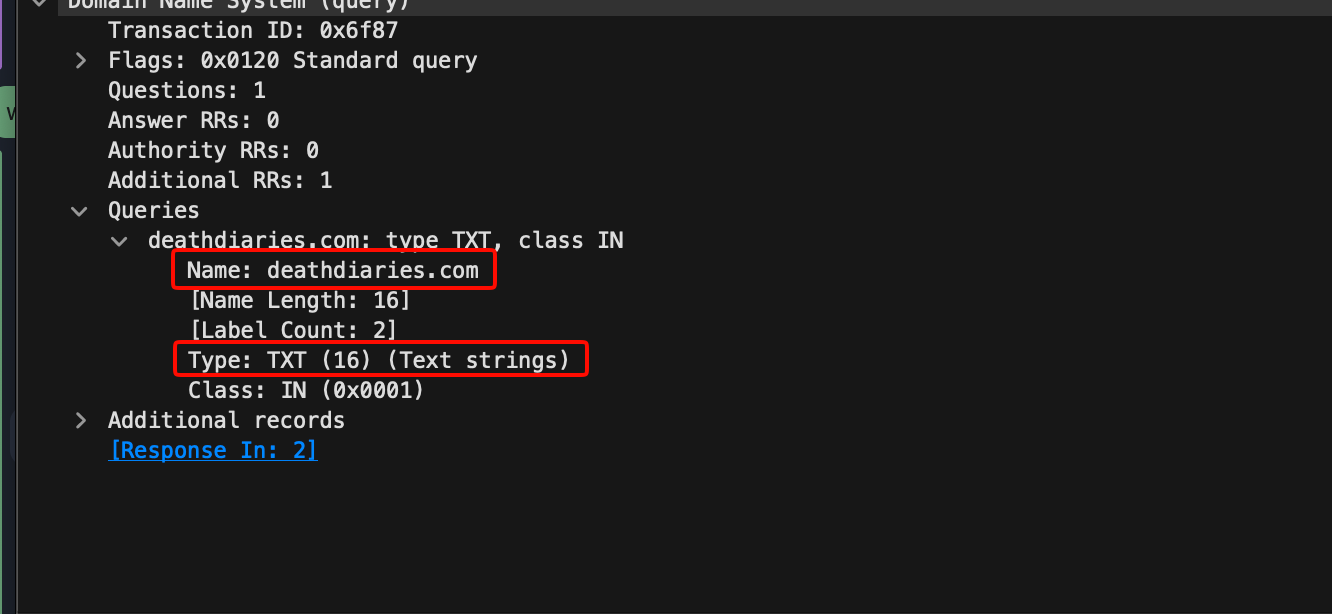
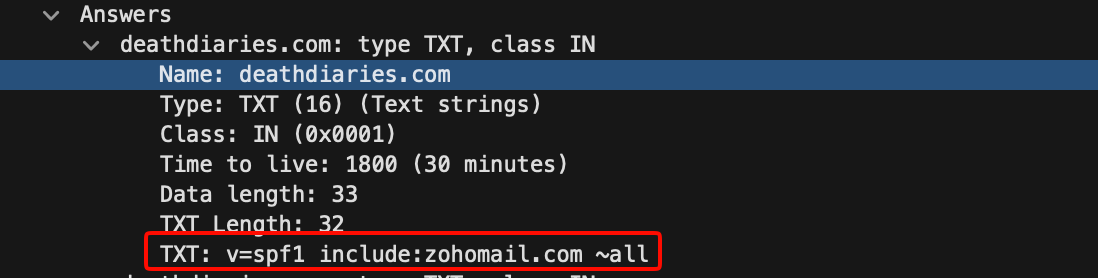
DNS supplies the policy. The receiving email server evaluates it.
4. Follow the includes to the permitted IP range
Our policy points to zohomail.com, so retrieve that domain’s TXT records:
dig zohomail.com TXT +short
The SPF answer in our lab was:
v=spf1 include:spf.zohomail.com -all
That leads to one more lookup:
dig spf.zohomail.com TXT +short
This answer contained several permitted IP ranges. The one relevant to our sending server was:
ip4:165.173.180.0/24
That /24 covers 165.173.180.0 through 165.173.180.255. The observed sending IP, 165.173.180.55, falls inside it.
The same IP is evaluated throughout the include chain. Our domain includes Zoho’s policy; that policy includes the ranges that permit the connecting server. Gmail’s Received-SPF header recorded a pass for our test message.
deathdiaries.com → zohomail.com → spf.zohomail.com
165.173.180.55 is within 165.173.180.0/24 → SPF pass
This also explains why our domain refers to Zoho: we chose Zoho to send our email and published that permission. Zoho maintains its provider ranges, so we don’t need to list every one of its sending IPs ourselves.
5. Inspect the six DNS packets
To see the lookups, capture DNS traffic in Wireshark while running the three dig commands. Our capture contained three request and response pairs:
| Packets | TXT lookup | What the reply showed |
|---|---|---|
| 1 → 2 | deathdiaries.com | include:zohomail.com |
| 3 → 4 | zohomail.com | include:spf.zohomail.com |
| 5 → 6 | spf.zohomail.com | The permitted IP ranges |
In a request, expand Domain Name System → Queries and check Name and Type. In its response, expand Answers and read the TXT value.
These packets capture our laptop reproducing the DNS lookups. Gmail’s own lookups and IP comparison happened on Google’s infrastructure; the delivered email’s headers provide its recorded result.
6. Interpret the result without overreading it
An SPF result and a delivery decision are different things. If no permitted rule matches, a final ~all gives softfail, while -all gives fail. The receiving email server decides how that affects delivery. RFC 7208 defines these and the other SPF outcomes.
A pass doesn’t validate links, attachments, or the message’s claims. An authorized sender can still send harmful content. When investigating suspicious email, treat SPF as one piece of evidence and correlate it with the trusted receiving headers and the message itself.
The next time you see spf=pass, you can ask a more precise question: which connecting IP was authorized to send using which domain? MX explains how the sender found the destination. SPF explains the permission check performed by the receiving email server.
DNS values and screenshots are from our October 14, 2026 lab. Provider records and IP ranges can change.