Randon, an IT employee, finds a USB on his desk after recess. Unable to contain his curiosity he decides to plug it in. Suddenly the computer goes haywire and before he knows it, some windows pops open and closes on its own. With no clue of what just happened, he tries seeking help from a colleague. Even after Richard’s effort to remove the malware, Randon noticed that the malware persisted after his system restarted.

My opinion:
I’d consider this challenge a great entry point for beginners. I chose it arbitrarily, and it turned out to be a solid introduction compared to more advanced challenges.
Q1) What is the serial number of the sandisk usb that he plugged into the system? And when did he plug it into the system? Format: verboten{serial_number:YYYY-MM-DD-HH-MM-SS}
To uncover the serial number of the USB device Randon plugged in, we began by examining artifacts tied to USB device enumeration. One of the most direct methods is inspecting the Windows Registry, where the OS stores detailed information about hardware interaction (amongst other things), including connected USB devices. To access that information, we first need to retrieve the SYSTEM and SOFTWARE registry hives from FTK Imager. The hives are located under C:\Windows\System32\configas shown below.
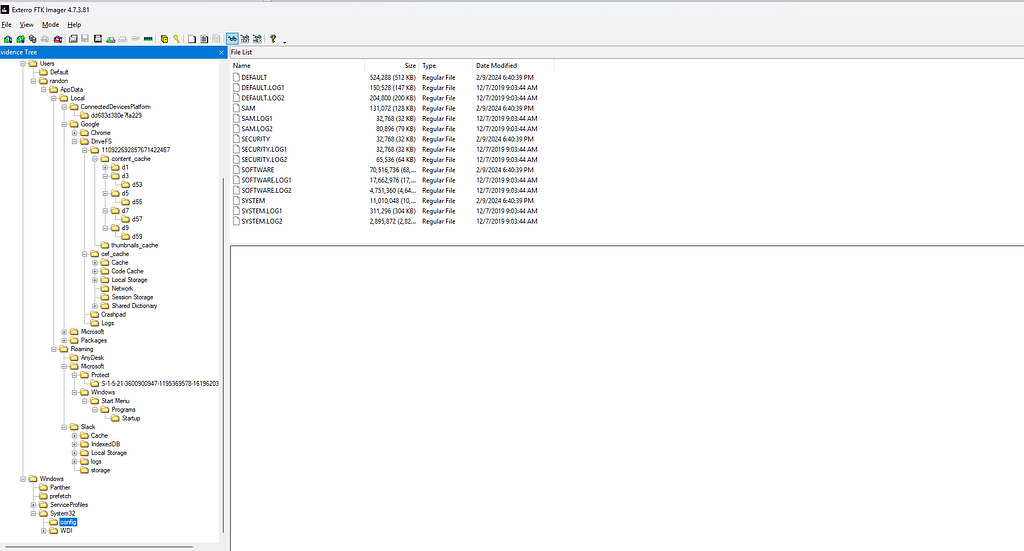 _SYSTEM and SOFTWARE hives under C:\Windows\System32\config_
Now that we have saved these hives onto our local host, they can be loaded into Registry Explorer to examine the entries. For some context, these are a handful of relevant storage device-related registry keys: HKLM\SOFTWARE\Microsoft\Windows Portable Devices\Devices, HKLM\SYSTEM\CurrentControlSet\Enum\USB, HKLM\SYSTEM\CurrentControlSet\Enum\USBSTOR, and HKLM\SYSTEM\MountedDevices.
Under USBSTORwe acquire the necessary details to aid in our investigation:
Last Connected (Confirms when the USB was last plugged in): 2024-02-16 12:01:57
Serial Number (The unique serial number of the USB device. This is key to identifying the exact device): 4C53000109031210395380
Manufacturer (Indicates the vendor/manufacturer of the USB): Ven_SanDisk
Device Name (Friendly name assigned by Windows or reported by the device): SanDisk Ultra USB Device
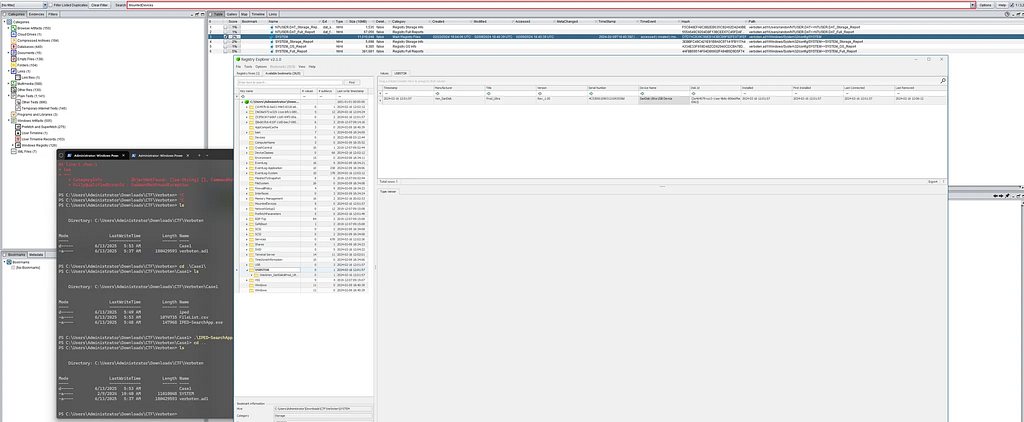
Answer: verboten{4C530001090312109353&0:2024–02–16 12:01:57}
Q2) What is the hash of the url from which the executable in the usb downloaded the malware from? Format: verboten{md5(url)}
Google Chrome History Location | Chrome History Viewer
_Chrome history is mainly stored within SQLite databases located in the Chrome profile folder. Browser History Examiner…_www.foxtonforensics.com
Chrome stores artifacts including cached data, history, cookies, downloads and even saved passwords inside specific folders in the operating system. This is helpful in identifying the source of malware, phishing websites, and strange binaries.
As mentioned by “Browser Forensics: Google Chrome”, /Users/random/AppData/Local/Google/Chrome/User Data/Default/History and /Users/random/AppData/Local/Google/Chrome/User Data/ChromeDefaultData/Historyare the relevant paths if we’re interested in downloads, navigation history, and search history.
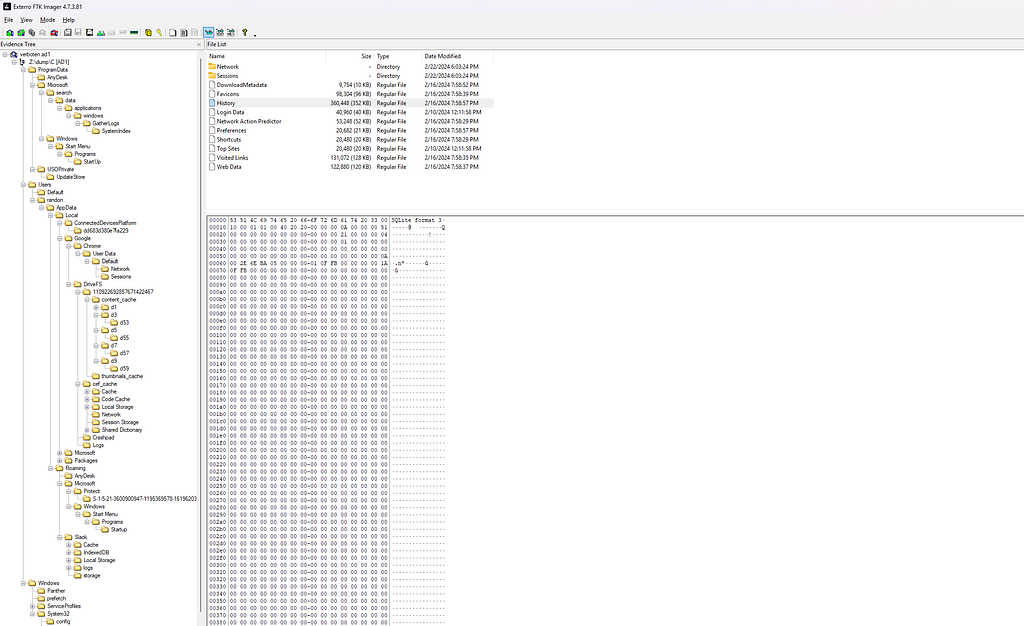 /Users/random/AppData/Local/Google/Chrome/User Data/Default/History
If we open this database using SQLite Database and navigate to the downloads table, we see some interesting artifacts including two entries under the tab_url and current_pathcolumns noting the retrieval of two files including “mal” and “winrar-x64–624.exe”. The ones we are interested in are:
Target_Path (Notes the full file path where the file was saved on the system): C:\Users\randon\Downloads\mal
Recevied_Bytes (number of bytes downloaded for a file): 985903
Tab_Url (URL that initiated the download): https[:]//filebin[.]net/qde72esvln1cor0t/mal
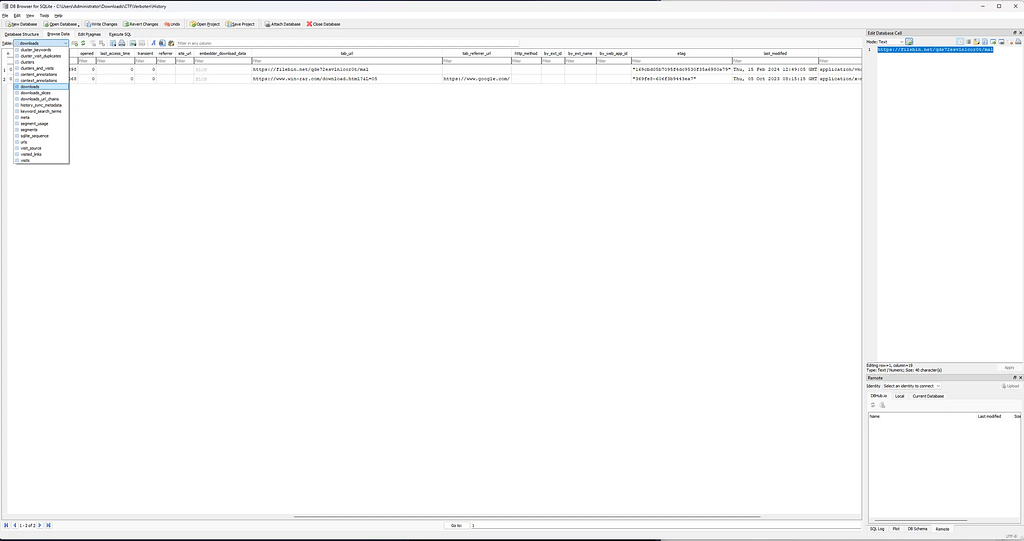
In order to get the MD5 hash of the URL, we’re going to utilize WSL as it was easier for this particular task:
 Image containing both artifacts under tab_url
echo -n "https://filebin.net/qde72esvln1cor0t/mal" | md5sum
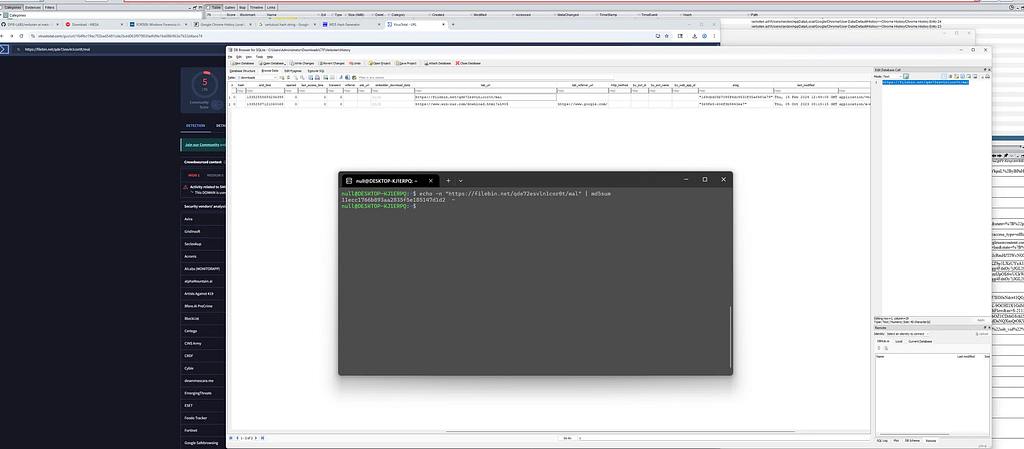 Output: 11ecc1766b893aa2835f5e185147d1d2
Answer: verboten{11ecc1766b893aa2835f5e185147d1d2}
Q3) What is the hash of the malware that the executable in the usb downloaded which persisted even after the efforts to remove the malware? Format: verboten{md5{malware_executable)}
We inspected two common Windows Registry keys often abused for persistence: HKCU\SOFTWARE\Microsoft\Windows\CurrentVersion\Run and HKCU\SOFTWARE\Microsoft\Windows\CurrentVersion\RunOncewhich run specified programs on startup every time the user logs in, with Run executing on every login and RunOnceexecuting only once.
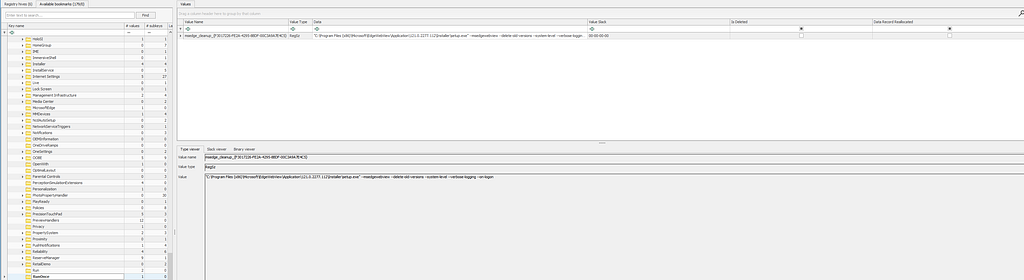
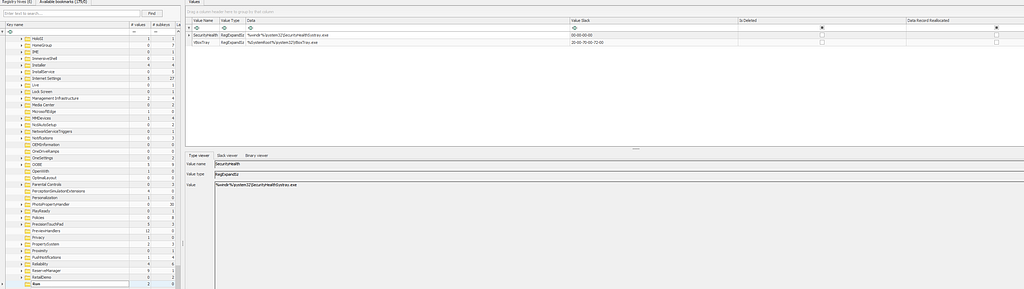
Albeit, we did not find anything in either of those registry keys. We continued with the “on startup” theme in mind and quickly navigated to the Start Menu\Programs\Startupfolder that hosts shortcuts to programs that automatically launch when a user logs in.
C:\\Users\\random\\AppData\\Roaming\\Microsoft\\Windows\\Start Menu\\Programs\\Startup\\mal.exe
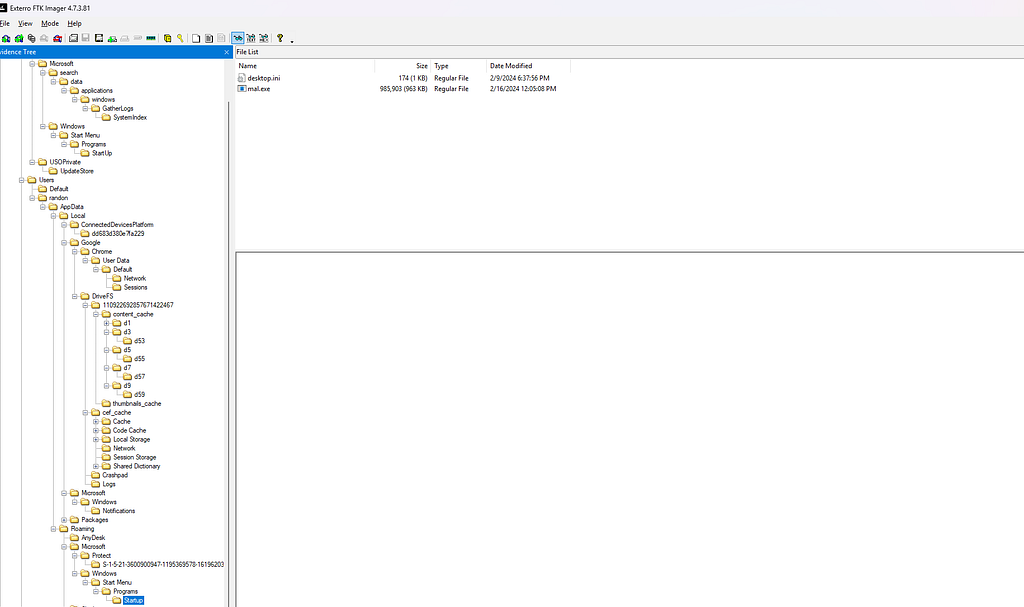
In the startup folder, we see the suspicious mal.exefrom earlier. To grab the hash, let's export it to our machine and upload it to VirusTotal, which details the MD5 hash under the Detailstab.
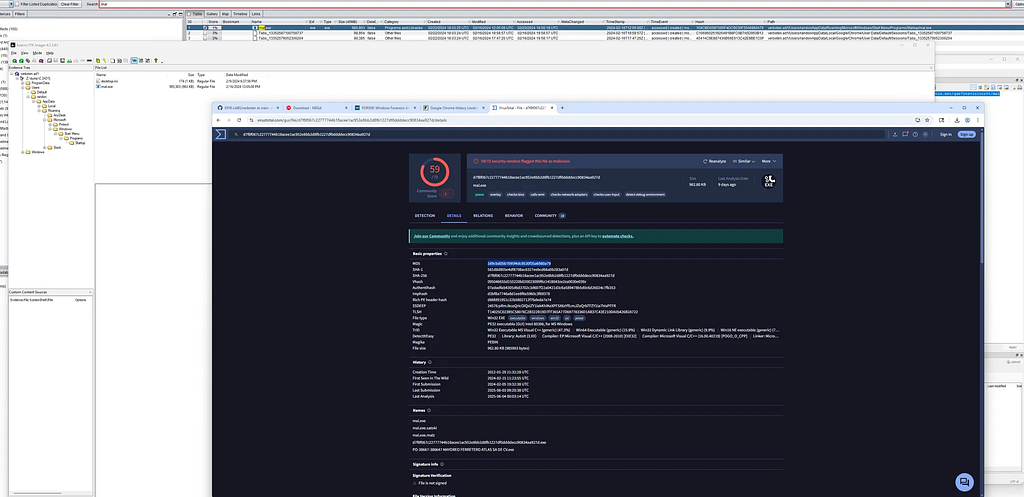
Another way we can grab the hash is by simply using certutil.
Certutil -HashFile ./mal.exe MD5
Asnwer: verboten{169cbd05b7095f4dc9530f35a6980a79}
Q4) What is the hash of the zip file and the invite address of the remote desktop that was sent through slack? Format: verboten{md5(zip_file):invite_address}
For this question, the very first two steps I took are opening the SANS application forensics cheatsheet which contains the path to relevant artifacts we need and googling “Slack Chat Forensics”.
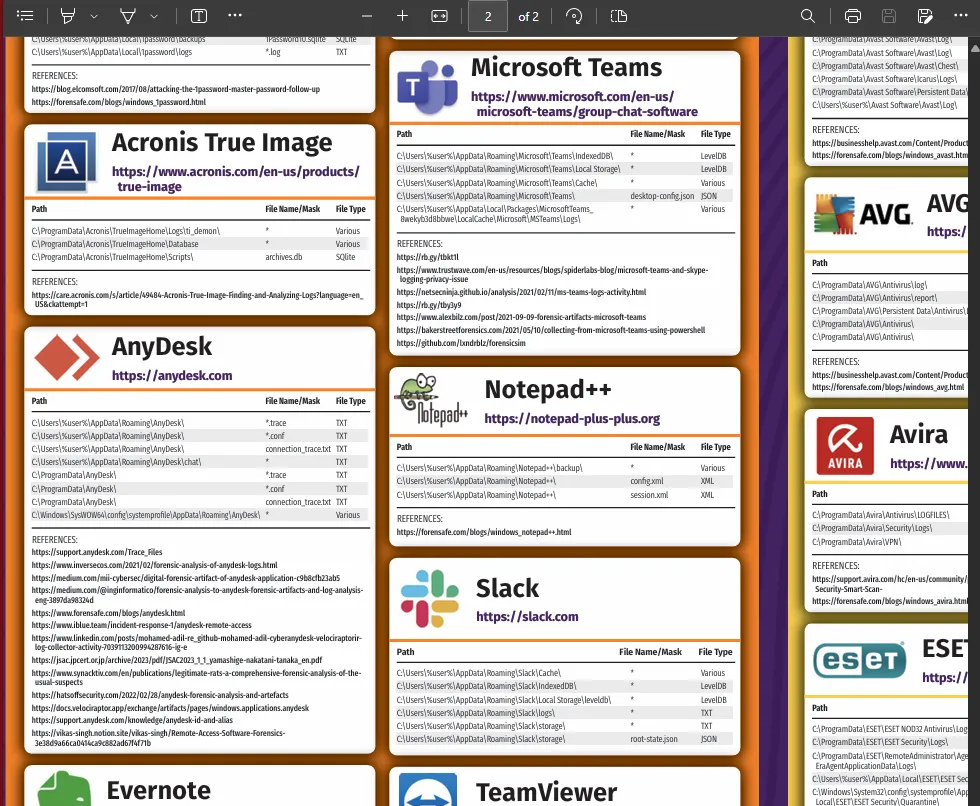 SANS CheatSheet
The blog “Forensics: Finding slack chat artifacts” details that, “in the file location below the most recent chats are stored in a LevelDb database. All of the data in this file is unencrypted. You can open it with Notepad to view the most recent chats but it’s better to use a levelDb reader. These files contain data stored from chrome indexedDB. Slack underlyingly uses Chromium (google chrome based browser). Slack stores the recent chats and the recently viewed user data in these files”. Let’s extract the relevant file using FTK Imager from/Users/randon/AppData/Roaming/Slack/IndexedDB/https_app.slack.com_0.indexeddb.blob/1/00/a.
<usersFolder>\<username\AppData\Roaming\Slack\IndexedDB\https_app.slack.com_0.indexeddb.leveldb
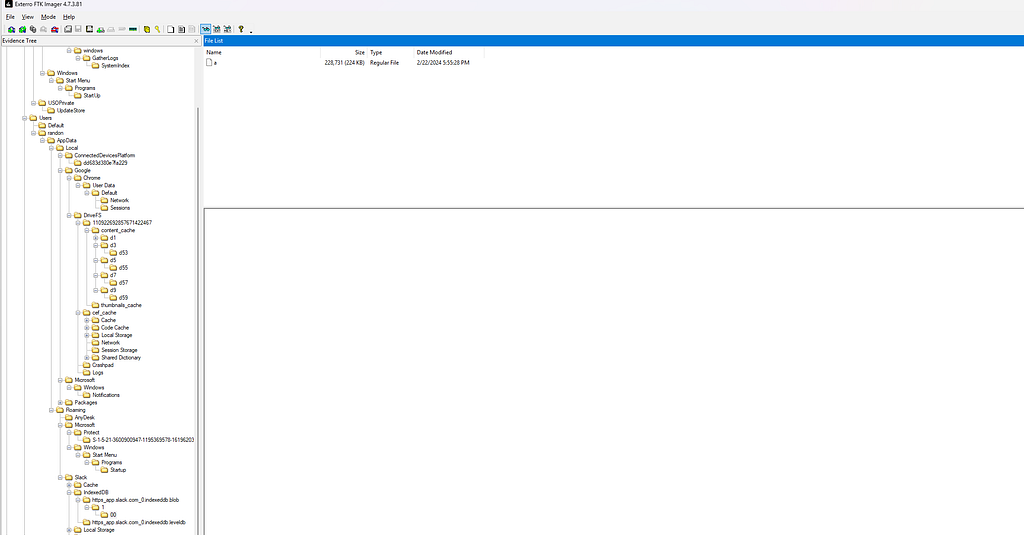
Slack-Parser was noted to aid in parsing slack databases and extracting user-data, chat history, workspace information. In order to run this script, let’s make sure we have the correct python version………..python can’t be found (ofc it can’t, let’s not ask any questions), so lets download it real quick:
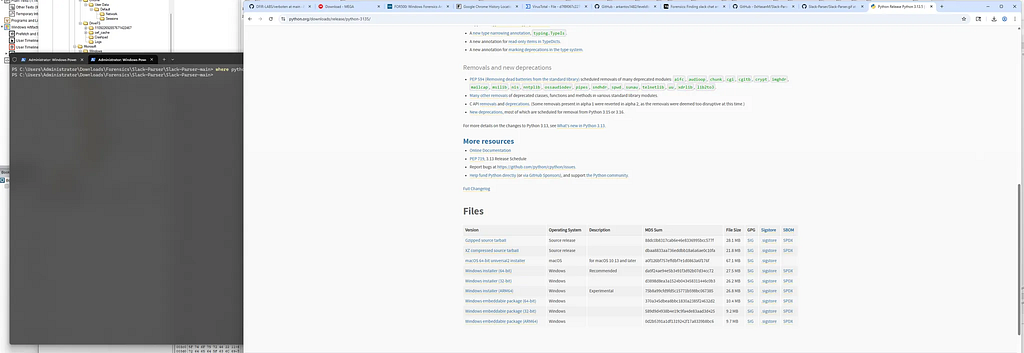
Now that python3 is installed, the script is in our current directory from https://github.com/0xHasanM/Slack-Parser and the relevant file is extracted, lets run it with the parameters below (which is just the file location). We extract the string "here is the address for anydesk: 1541069606".
C:\Users\Administrator\Downloads\CTF\Verboten\https_app.slack.com_0.indexeddb.blob\1\00\a
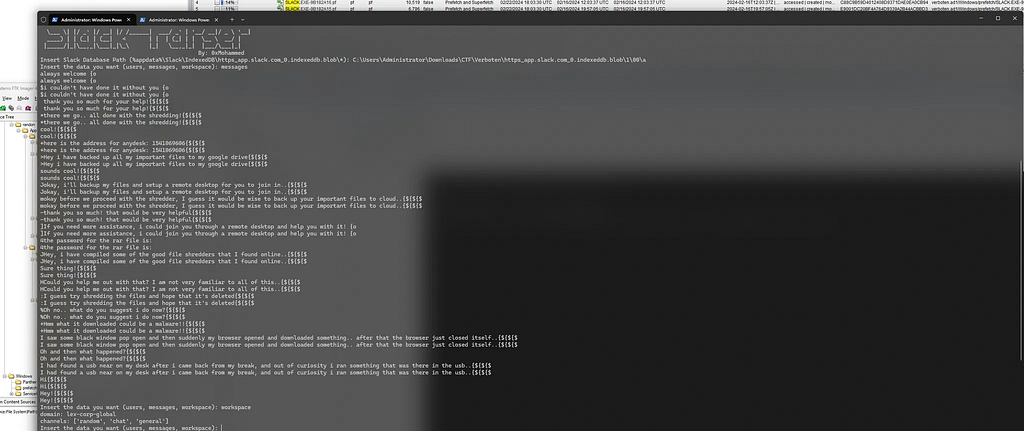
Acquiring the hash of the zip file requires us to first note the location of where Slack caches data like file name, content size, and date modified. Navigating to the path below reveals us all the relevant files with the f_0000adfile being the biggest at 19,695 KB, ultimately making it the file we scrutinize.
C:\Users\%user%\AppData\Roaming\Slack\Cache\

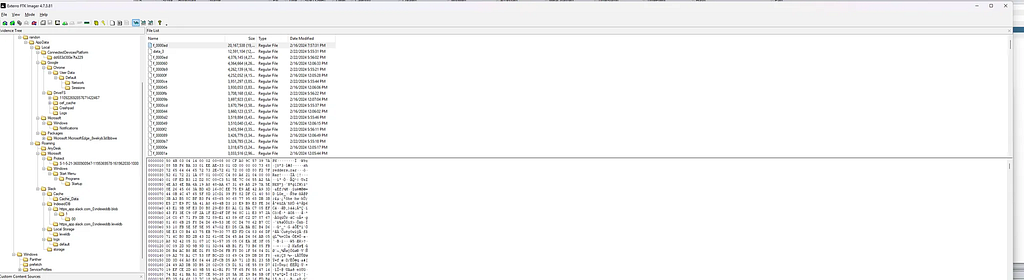
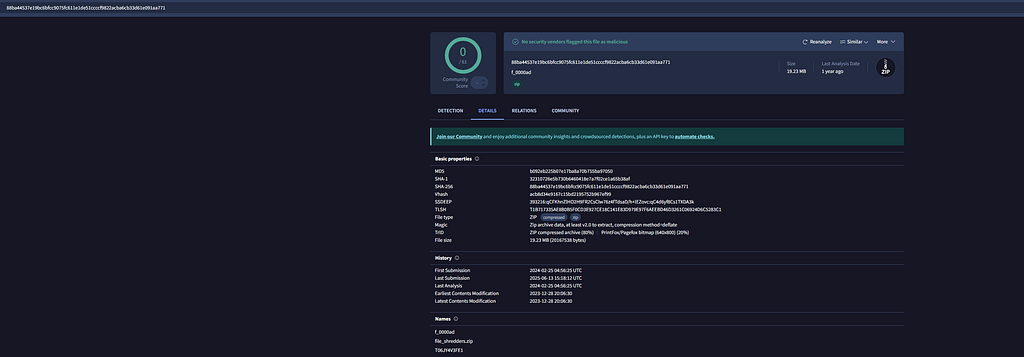
There are two methods we can utilize to confirm that this file is indeed the relevant shredder.zip file. The first method involves uploading the file in VirusTotal which reveals it as file_shredders.zipunder theDetailstab, from here we can also grab its MD5 hash.
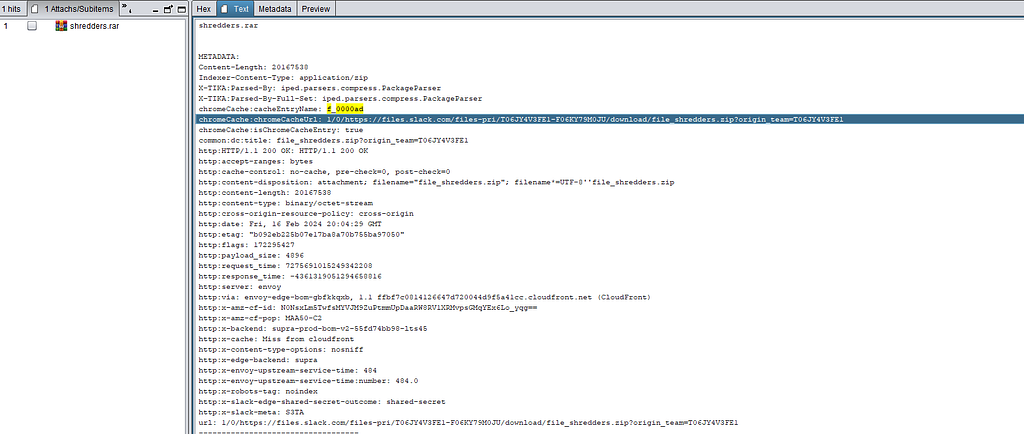
The second method involves a string search for the relevant file. The search outputs two interesting results, Output 1 noting metadata that includes embeddedRelationshipId: shredders.rar and Output 2 noting that it was downloaded from a private workspace (T06JY4V3FE1) and associated with file ID F06KY7SM0UJ, additional interesting artifacts including:
Download URL: https[:]//files[.]slack[.]com/files-pri/T06JY4V3FE1-F06KY7SM0UJ/download/file_shredders.zip?origin_team=T06JY4V3FE1
File Name: file_shredder.zip
Content-Length: 20167539
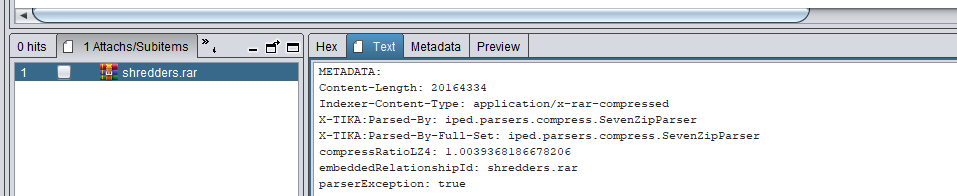 Output 1
 Output 2
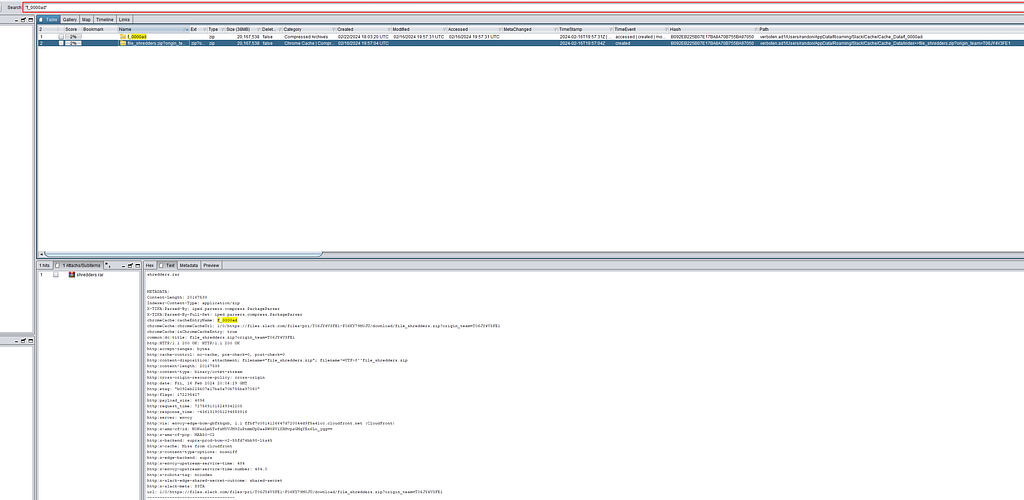 File search results
<https://files.slack.com/files-pri/T06J4V43FE1-F06K7Y9MOJU/download/file_shredders.zip>
Answer: verboten{b092eb225b07e17ba8a70b755ba97050:1541069606}
Q5) What is the hash of all the files that were synced to Google Drive before it was shredded? Format: verboten{md5 of each file separated by ‘:’}
Windows Google Drive
_16/12/2022 Friday Google Drive is a cloud- based file storage service similar to Microsoft OneDrive and Apple iCloud…_forensafe.com
SANS Application forensics cheatsheet notes interesting paths found on our OS that store artifacts relevant to Google Drive.
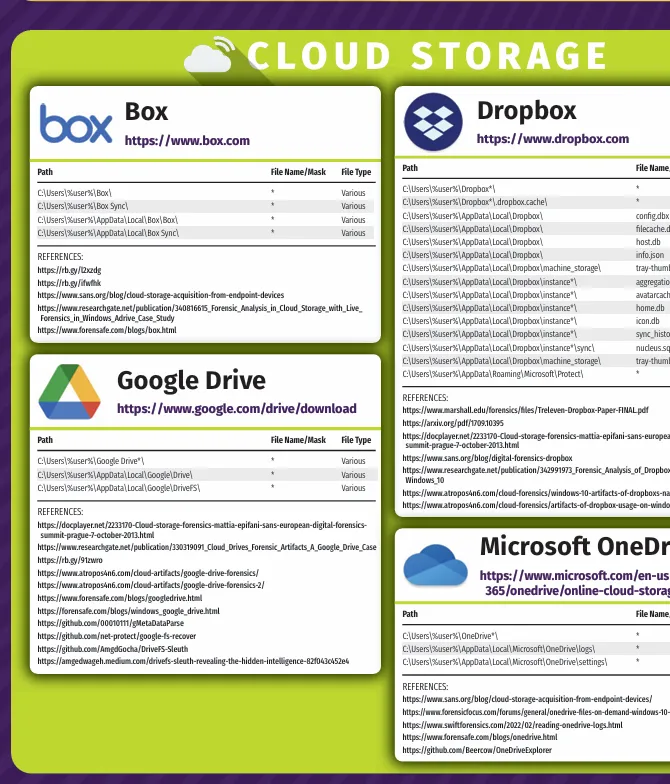
Underusers/randon/AppData/Local/Google/DriveFS/110922692857671422467/content_cache we see caches file content and database files that track access. Some neat things to keep in mind:
These temporary files may persist even after deletion from the cloud.
If a file was opened but not saved, it might still exist in cache.
Cached files lack original filenames but can be matched via metadata.
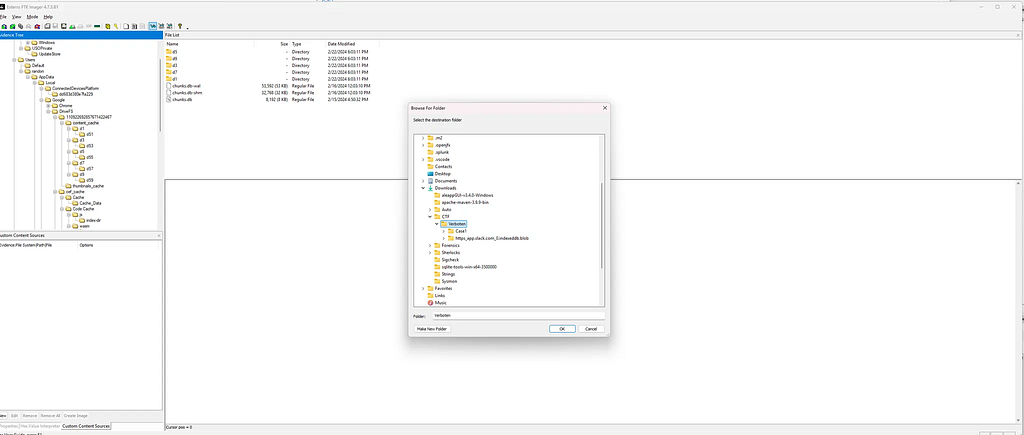
We run treein order to confirm we captured all the exported files and follow up by gathering the MD5 hash of each file with certutil.
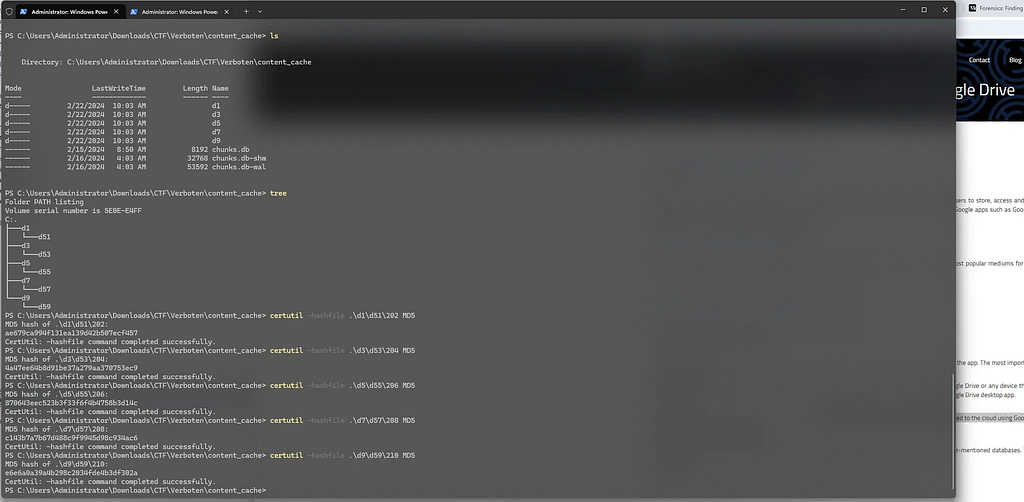
verboten{ae679ca994f131ea139d42b507ecf457, 4a47ee64b8d91be37a279aa370753ec9, 870643eec523b3f33f6f4b4758b3d14c, c143b7a7b67d488c9f9945d98c934ac6, e6e6a0a39a4b298c2034fde4b3df302a}
Q6) What is time of the incoming connection on AnyDesk? And what is the ID of user from which the connection is requested? Format: verboten{YYYY-MM-DD-HH-MM-SS:user_id}
AnyDesk Forensics | AnyDesk Log Analysis
_In this blogpost we will cover AnyDesk forensics and go over the AnyDesk logs from an Incident Response perspective…_medium.com
To answer this question, we need to know where the operating system stores AnyDesk logs. These log files are typically located in the following directories:
C:\\Users\\%username%\\AppData\\Roaming\\AnyDesk\\ad.trace
C:\\Users\\%username%\\AppData\\Roaming\\AnyDesk\\connection_trace.txt
C:\\ProgramData\\AnyDesk\\ad_svc.trace
C:\\ProgramData\\AnyDesk\\connection_trace.txt
These logs can be useful for investigating connection history, session data, or potential unauthorized remote access. The first file we examine in is the connection_trace.txt,which unsurprisingly reveals that an incoming connection request occurred at 2024-02-16, 20:29. This file reveals how the connection was accepted or rejected, as well as who sent the connection request. However, it does not detail the milliseconds that the question requires.
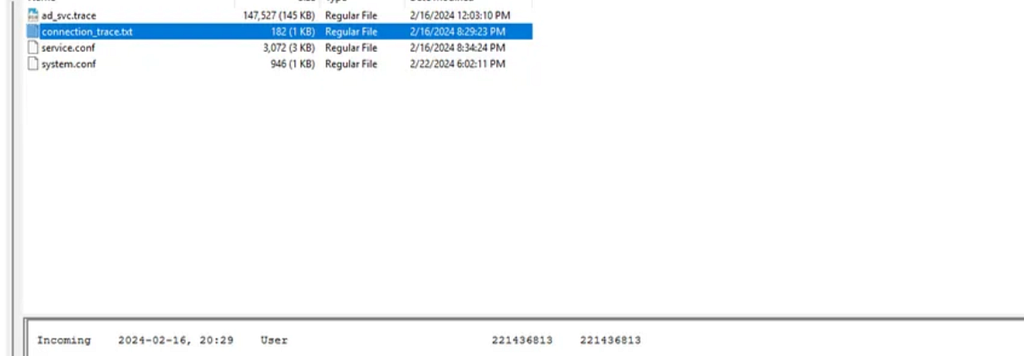
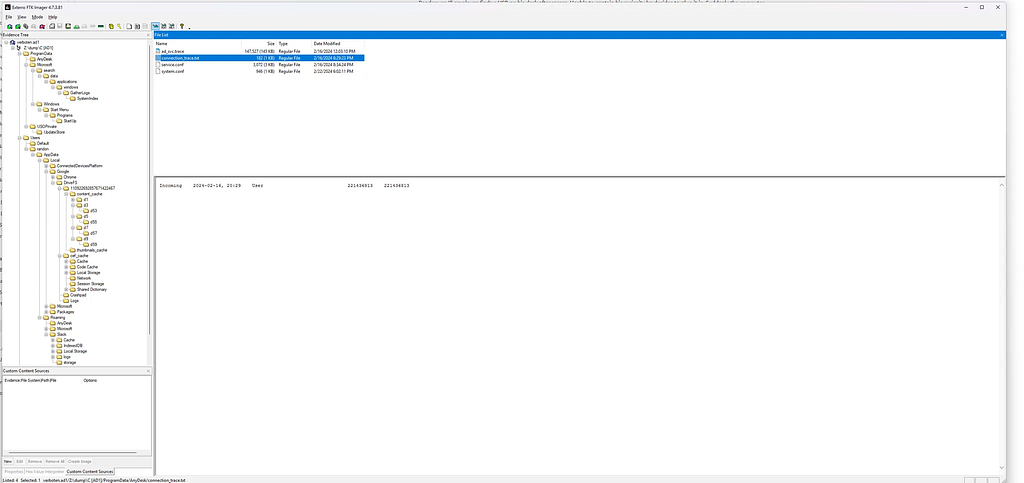 _/ProgaramData/AnyDesk/connection-trace.txt
Trace Files
_Table of Contents AnyDesk outputs trace files while running that can be utilized to diagnose problems. Some errors…_support.anydesk.com
Now that we have the date and time, let's cross reference the ad.tracefile that contains diagnostics and session related information captured while AnyDesk is running. If we navigate to the previously noted timestamp, we quickly see that there was an “Incoming Session Request” sourced from Richard Beard(221436813). This confirms that the connection attempt aligns with the expected activity timeline and source.
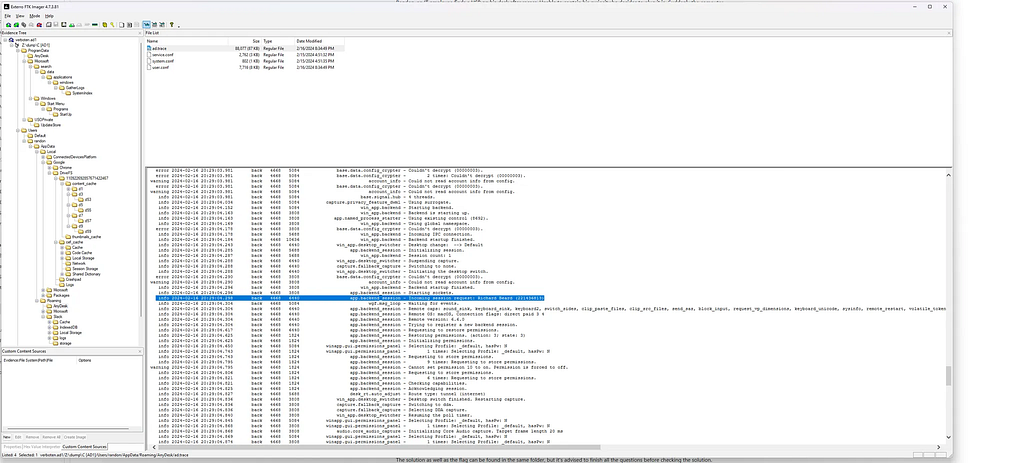
Relevant result from adtrace.
info 2024-02-16 20:29:04.298 - Incoming session request: Richard Beard (221436813)
verboten{2024–02–16 20:29:04:221436813(Richard Beard)}
Q7) When was the shredder executed? Format: verboten{YYYY-MM-DD-HH-MM-SS}
Forensic Value of Prefetch - SANS Internet Storm Center
_Forensic Value of Prefetch, Author: Johannes Ullrich_isc.sans.edu
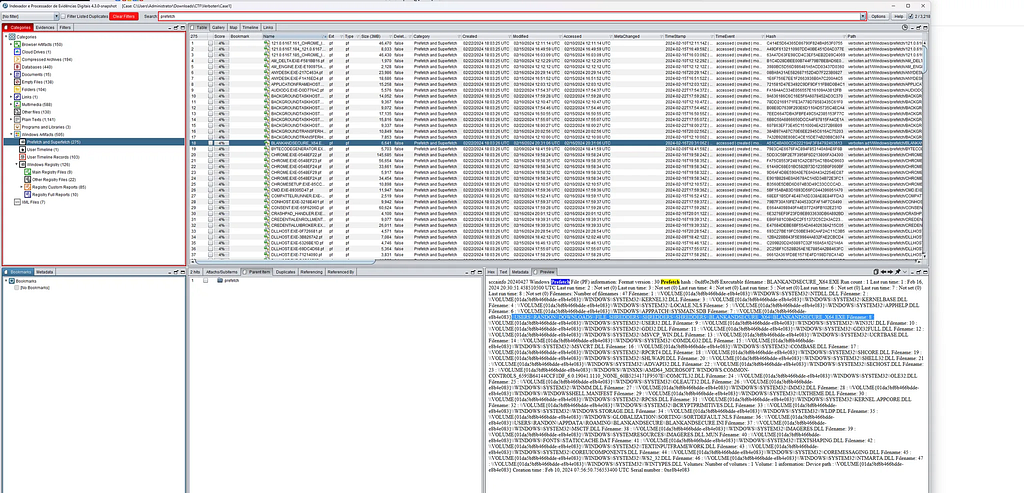
When presented with questions about program execution or unidentified binaries, the first thing to check is forensic artifacts detailing evidence of execution, some being Shimcache, Amcache, UserAssist, SRUM, JumpLists, LNK Files, and obviously Prefetch. When we perform a string search for “prefetch”, we retrieve all relevant prefetch files present on the system. These files can be used to identify executable activity and help determine the timeline of program execution. Scrolling through all the .pf files help us find the weird BLANKANDSECURE_X64.EXE-DF0E2BF6.pf entry found at C:\USERS\RANDOM\DOWNLOADS\FILE SHREDDER5\SHREDDER5\SHREDDER5\BLANKANDSECURE_X64.EXE, which is regarded as File Shredder.
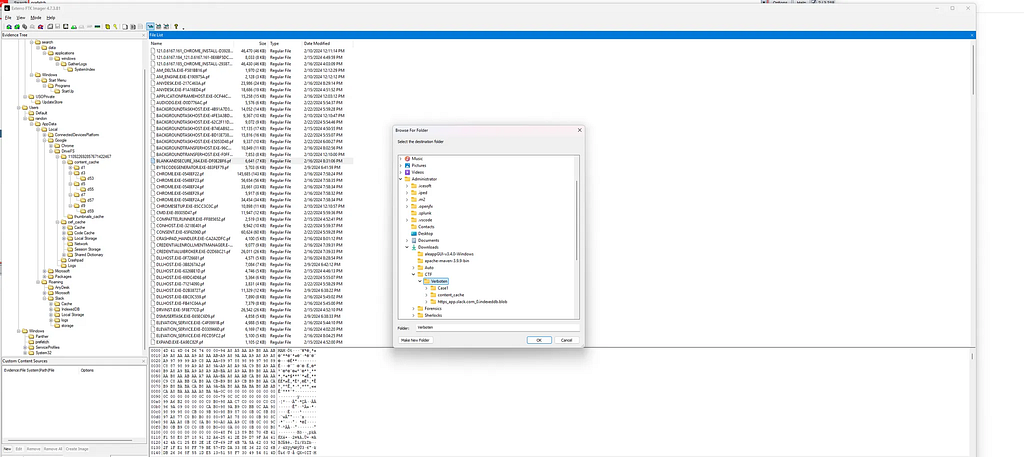
We can also utilize FTK Imager to export the prefetch file.
We then used PECmd to parse the .pf file and convert the output into a human-readable format. The command used was:
-f: Specifies the input.pffile.
--csv: Outputs the parsed data in.csvformat.
.\PECmd.exe -f "C:\Users\Administrator\Downloads\CTF\Verboten\BLANKANDSECURE_X64.EXE-DF0E2BF6.pf" --csv "C:\Users\Administrator\Downloads\CTF\Verboten\Shred.csv"
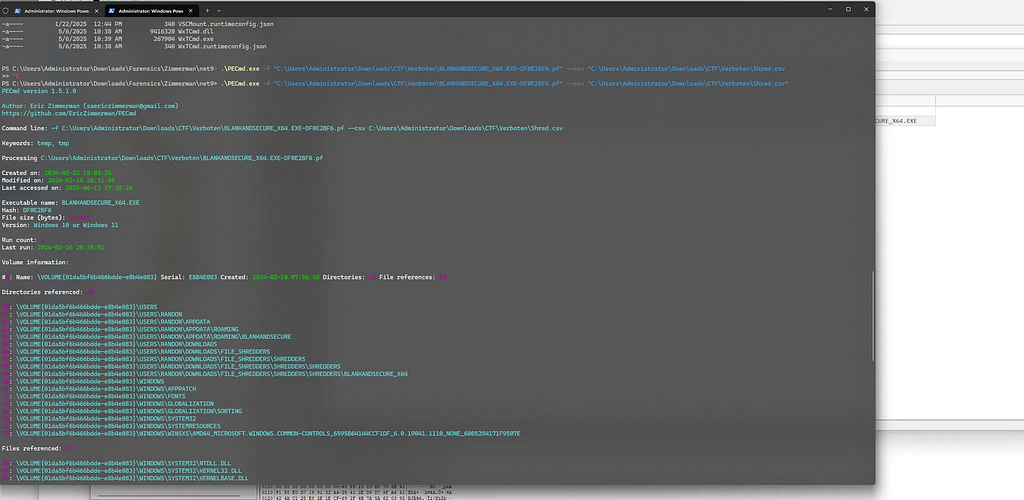 PECmd doing its thing
Once the .csv was generated, we opened it using Timeline Explorer, which allows us to:
Sort by timestamp
Identify run counts, first/last run times
Reveal DLL dependencies and executable path
This parsed the execution metadata and produced two key CSV files:
PECmd_Output.csv: Detailed view of execution data
PECmd_Output_Timeline.csv: Chronologically sorted for use in timeline tools
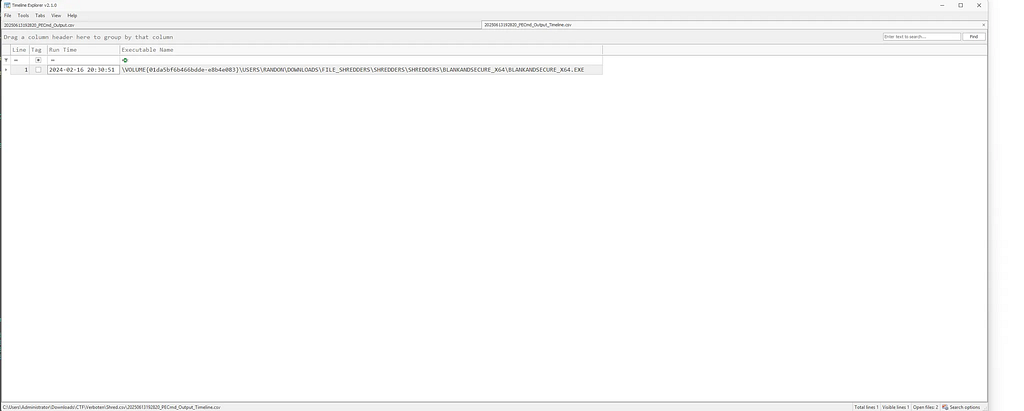
Run Time:
2024-02-16 20:30:51
Executable Path:
C:\USERS\RANDOM\DOWNLOADS\FILE_SHREDDERS\SHREDDERS\SHREDDERS\BLANKANDSECURE_X64.EXE
Run Count:
1
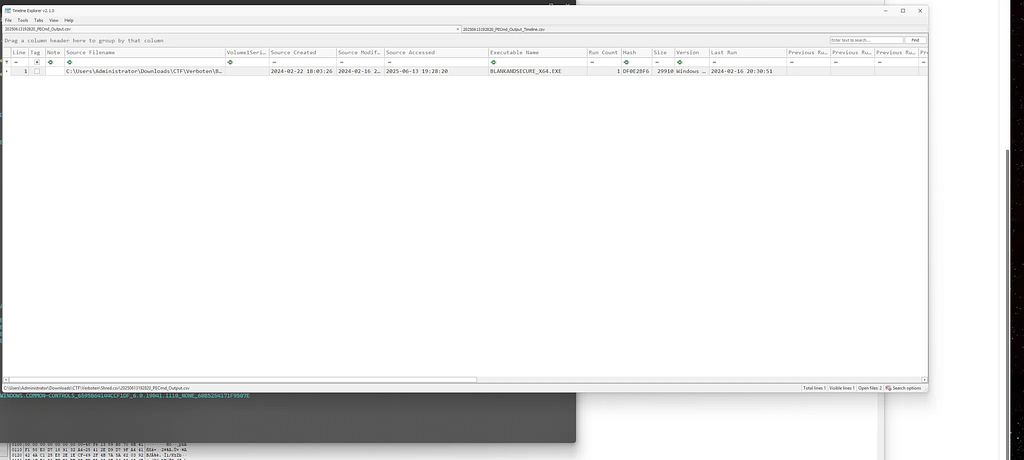
verboten{2024–02–16 20:30:51}
Q8) What are the answers of the backup questions for resetting the windows password? Format: verboten{answer_1:answer_2:answer_3}
View security questions on Windows 10
_SecurityQuestionsView is a tool for Windows 10 that allows you to view the security questions and their answers stored…_www.nirsoft.net
There are two ways we can we can recover the answers to the backup security questions configured for password recovery. These questions are stored locally and can be extracted either manually from the registry or with the help of SecurityQuestionsView from Nirsoft. The Registry hive needed to extract the security questions is the SAM, once we fed that into the tool, we had the three relevant security questions.
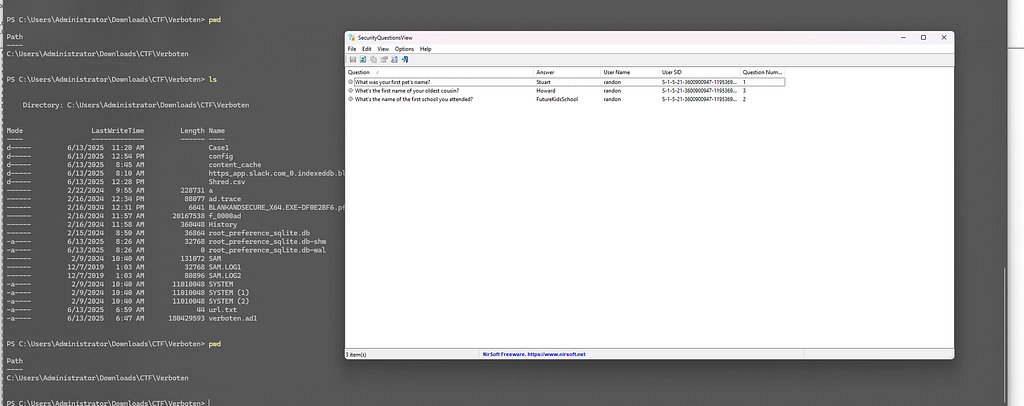
Alternatively, we also parsed this data manually by inspecting the path below, albeit this route is a little more time-consuming. We see the user random (User ID 1000) is listed with a Reset Data field containing the three security questions we noted from SecurityQuestionsView.
HKEY_LOCAL_MACHINE\\SAM\\SAM\\Domains\\Account\\Users
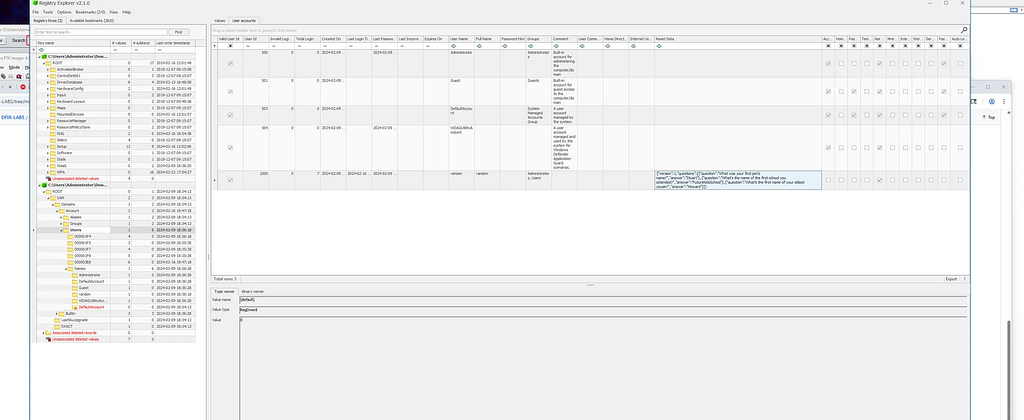
verboten{What was your first pet’s name?:What’s the first name of your oldest cousin?:What’s the name of the first school you attended?}
Q9) What is the single use code that he copied into the clipboard and when did he copy it? Format: verboten{single_use_code:YYYY-MM-DD-HH-MM-SS}
Windows.Forensics.Clipboard
_This artifact will show the Clipboard activity. The artefact ActivitiesCache.db has started to log clipboard activity…_docs.velociraptor.app
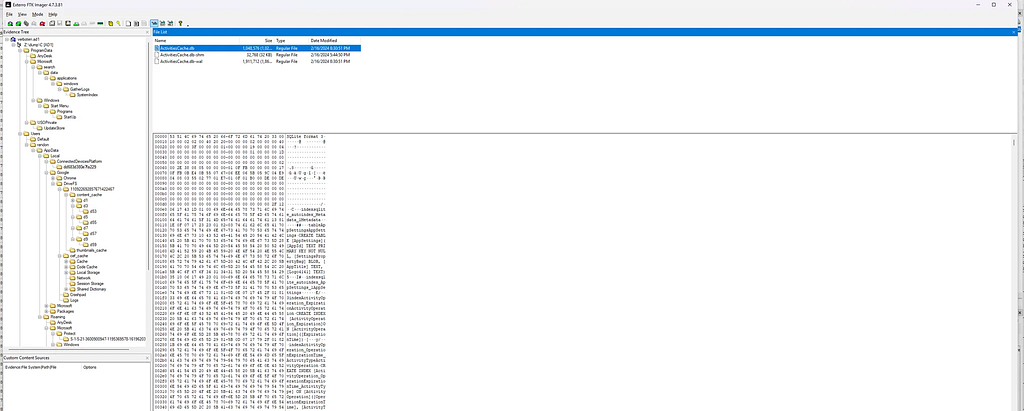
For this part of the investigation, we needed to identify a single-use code that was copied to the clipboard and determine the exact time it happened. This kind of user activity is stored in the ActivitiesCache.db file.
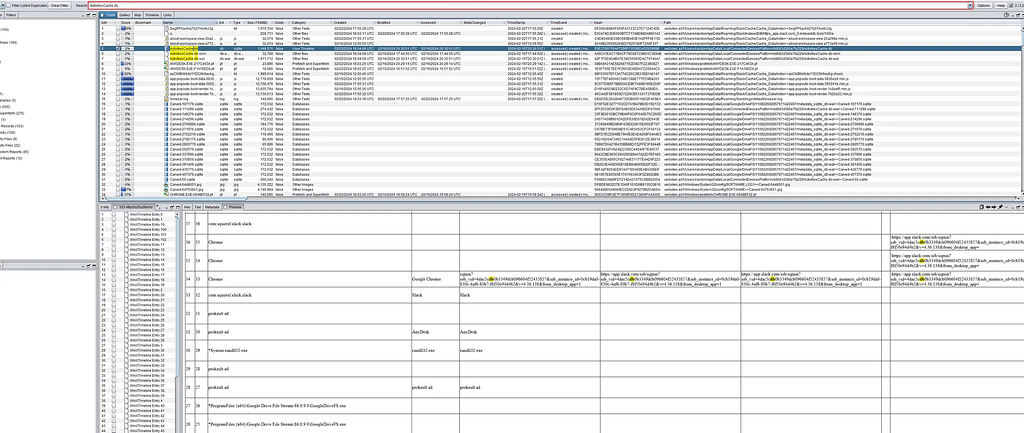
C:\Users\*\AppData\Local\ConnectedDevicesPlatform\*\ActivitiesCache.db
The first step was to navigate to the path above and extract the ActivitiesCache.db file from the image. This file logs user interactions like clipboard events, app usage, and timeline activities.
We opened the .db file using an SQLite browser to inspect its contents, and within the Activity table, we see an event related to clipboard usage, containing both a timestamp (in Unix epoch) and a base64-encoded string representing the clipboard content.
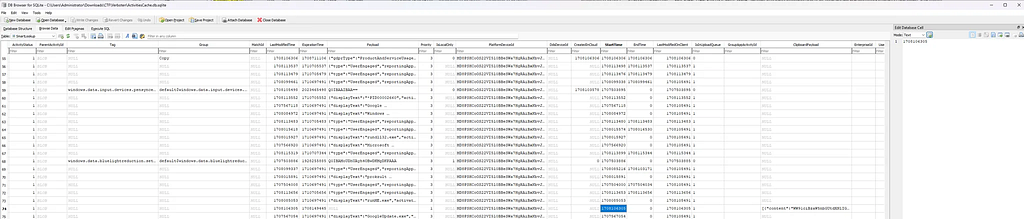
The Unix epoch value was 1708106083, using a timestamp converter, we translated it to 2024–02–16 17:54:43 UTC. Converting this to IST results in 2024–02–16 23:24:43 IST.

We then took the Base64-encoded string and decoded it in CyberChef, revealing the code:
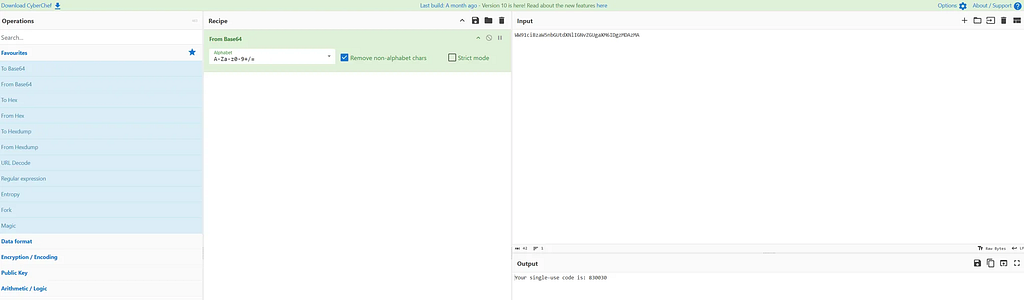
verboten{830030:2024–02–16–23–24–43}