With Elasticsearch and Kibana set up, configure Windows audit policies at the following Group Policy path:
Computer Configuration → Windows Settings → Security Settings → Advanced Audit Policy Configuration → Audit Policies.
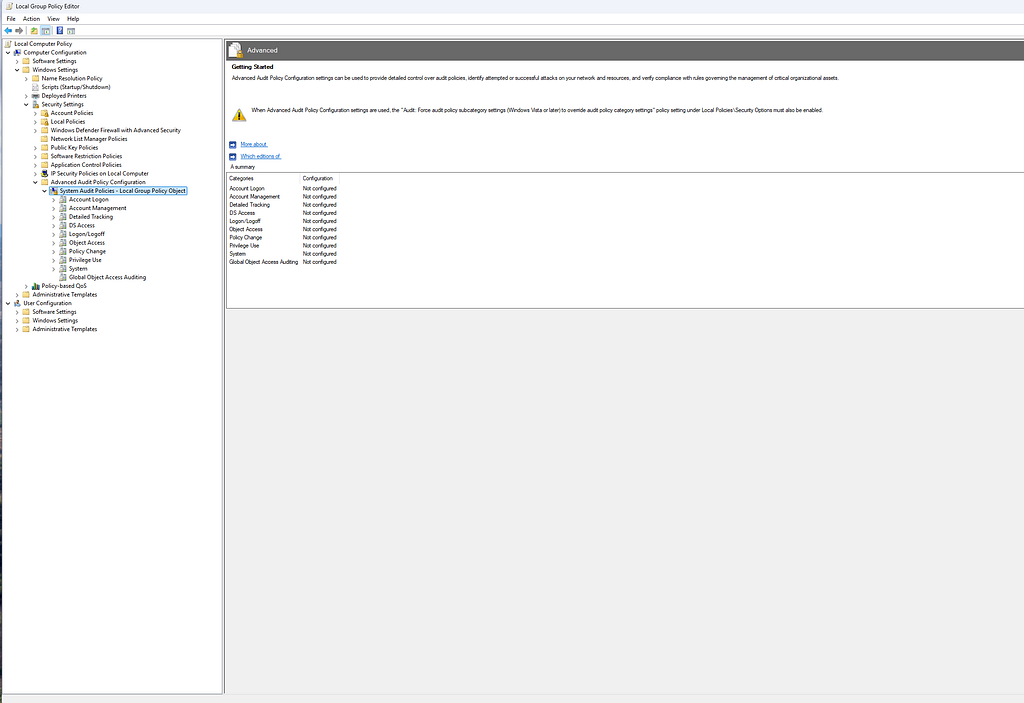
Configure Windows audit policies
Under System Audit Policies, configure the following key categories to log critical events:
| Category | Audit subcategory | Enable | Events to collect |
|---|---|---|---|
| Account Logon | Credential Validation | Success and Failure | Successful and failed credential validation. |
| Account Logon | Kerberos Authentication Service | Success and Failure | Kerberos authentication events. |
| Account Management | User Account Management | Success and Failure | Changes to user accounts. |
| Logon/Logoff | Logon | Success and Failure | User logon attempts, including RDP logons. |
| Logon/Logoff | Special Logon | Success | Special privileges assigned to a new logon. |
| Logon/Logoff | Logoff | Success | User logoff events. |
| Object Access | File System | Success and Failure | File and folder access events matching object audit rules. |
| Object Access | Registry | Success and Failure | Registry access events matching object audit rules. |
| Detailed Tracking | Process Creation | Success | New process events. |
| Detailed Tracking | Process Termination | Success | Process termination events. |
| Privilege Use | Sensitive Privilege Use | Success and Failure | Use of sensitive privileges such as SeDebugPrivilege. |
File system and registry access auditing also require matching system access control list (SACL) entries on the objects being monitored. See Microsoft’s Audit File System and Audit Registry documentation.
Apply the policy to the client
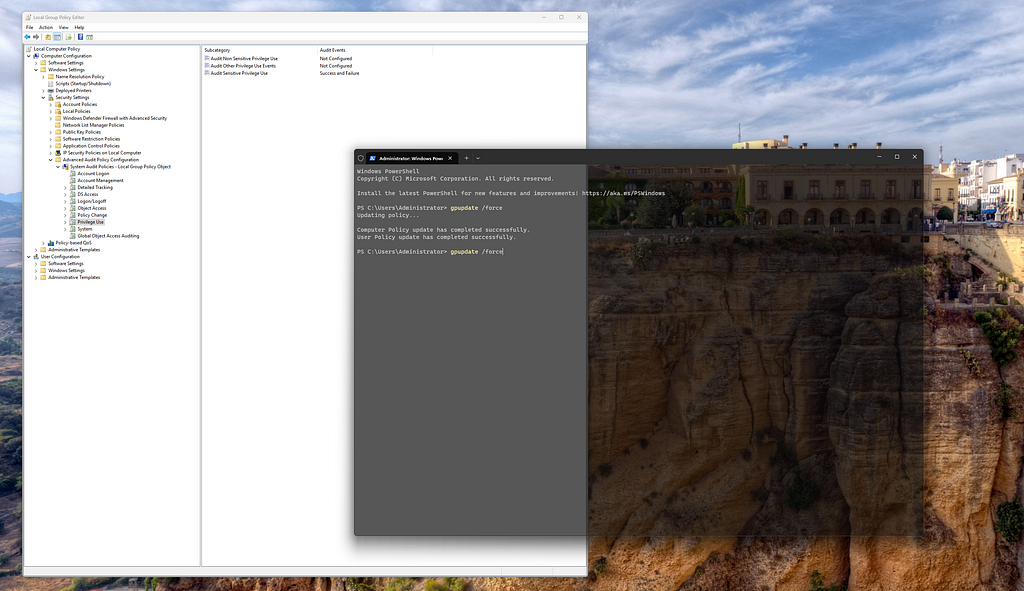
Once you’ve configured the policies, apply them to the client machine:
- On the Windows client, open Command Prompt as Administrator.
- Run the following command:
gpupdate /force
This will enforce the updated Group Policy settings immediately.
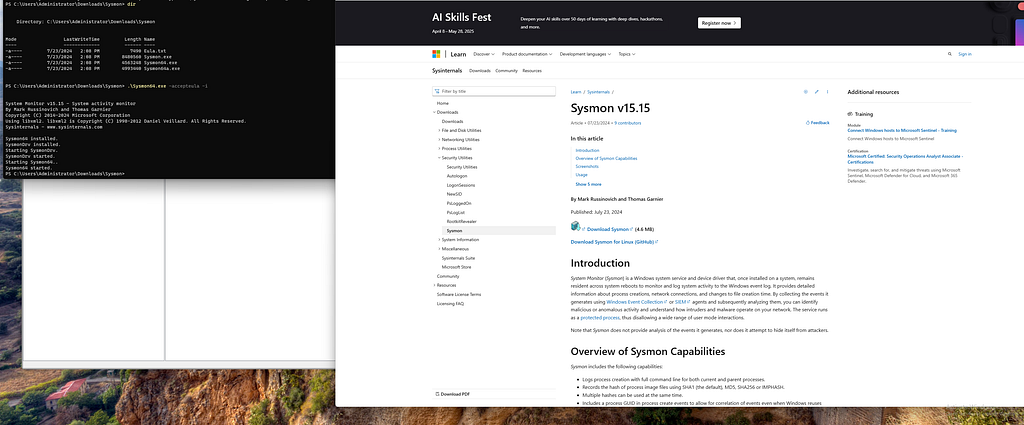
Configure Sysmon
To collect additional process, network, and file activity, install Sysmon from the official Sysinternals download page.
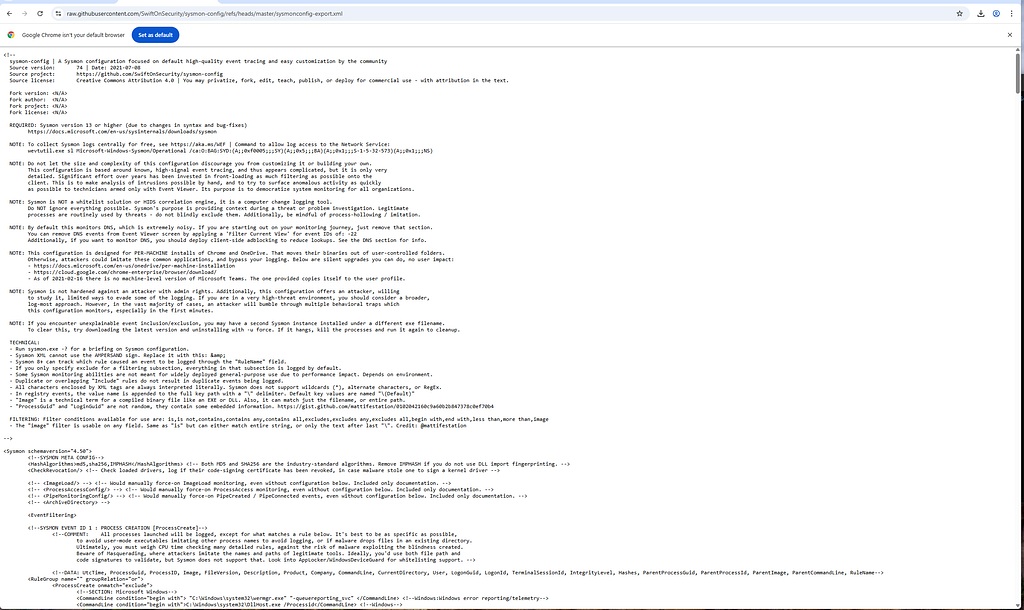
We’ll use SwiftOnSecurity’s community tested configuration file to ensure we capture the most relevant and security focused events.
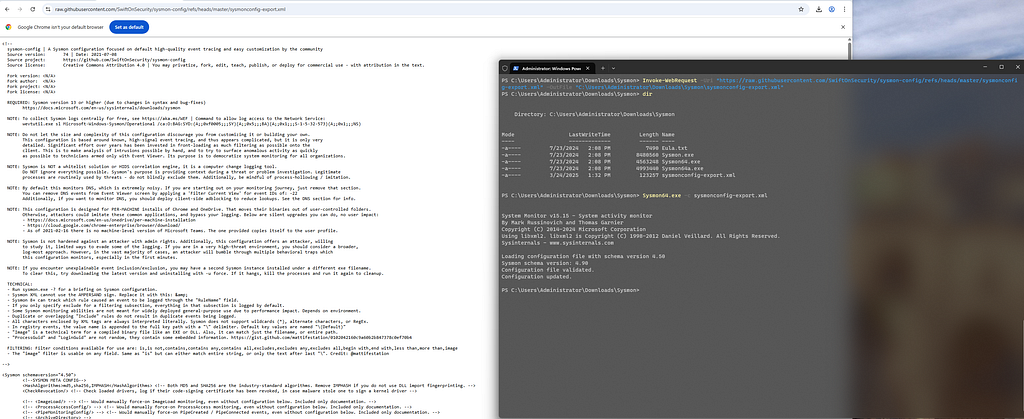
Download the configuration
Run the following PowerShell command on your Windows machine:
Invoke-WebRequest -Uri "https://raw.githubusercontent.com/SwiftOnSecurity/sysmon-config/refs/heads/master/sysmonconfig-export.xml" -OutFile "C:\Users\Administrator\Downloads\Sysmon\sysmonconfig-export.xml"
Load the configuration
Run the following command from the Sysmon directory:
Sysmon64.exe -c sysmonconfig-export.xml
This tells Sysmon to load and apply the configuration file you downloaded without reinstalling the service.
Complete!
 Jobs not finished.
Install Atomic Red Team
Before we can use Atomic Red Team, install the powershell-yaml module:
Install-Module -Name powershell-yaml

Use this command to download and install the Atomic Red Team framework, including all test files (“atomics”):
IEX (IWR 'https://raw.githubusercontent.com/redcanaryco/invoke-atomicredteam/master/install-atomicredteam.ps1' -UseBasicParsing); Install-AtomicRedTeam -getAtomics -Force
This script will:
- Clone the Atomics GitHub repo to
C:\AtomicRedTeam - Install helper functions into
invoke-atomicredteam

Load the module in PowerShell
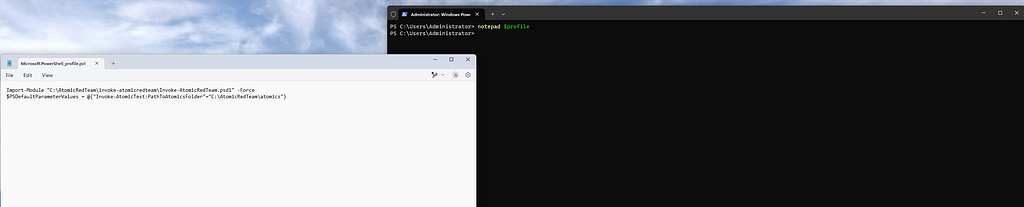
To make the Invoke-AtomicTest command available in every PowerShell session:
notepad $profile
Add the following lines:
Import-Module "C:\AtomicRedTeam\invoke-atomicredteam\Invoke-AtomicRedTeam.psd1" -Force
$PSDefaultParameterValues = @{"Invoke-AtomicTest:PathToAtomicsFolder"="C:\AtomicRedTeam\atomics"}
Save and restart PowerShell.
Run the tests and inspect the logs
The script below runs several Atomic tests that span multiple attack stages.
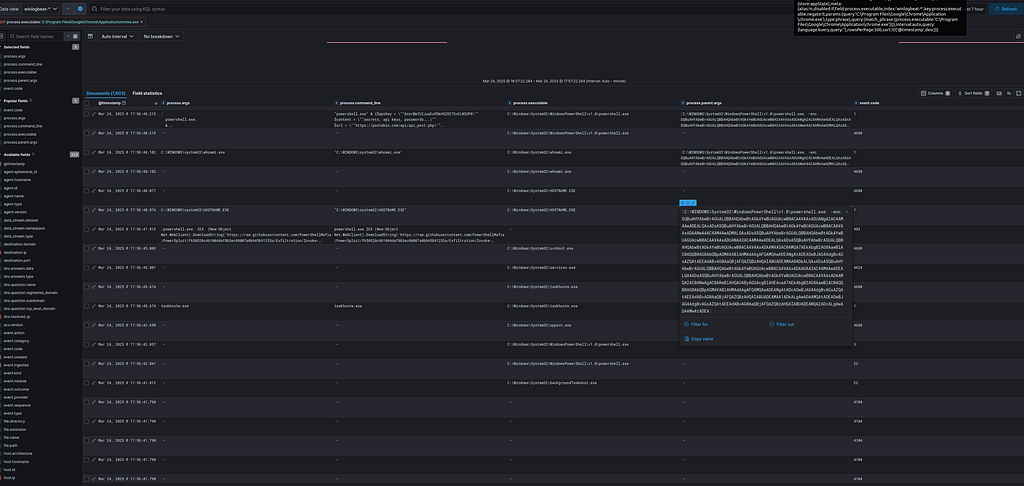
powershell -enc SQBuAHYAbwBrAGUALQBBAHQAbwBtAGkAYwBUAGUAcwB0ACAAVAAxADUANgA2AC4AMAAwADEALQAxADsASQBuAHYAbwBrAGUALQBBAHQAbwBtAGkAYwBUAGUAcwB0ACAAVAAxADAANwA4AC4AMAAwADMALQAxADsASQBuAHYAbwBrAGUALQBBAHQAbwBtAGkAYwBUAGUAcwB0ACAAVAAxADUANAA3AC4AMAAwADEALQAxADsASQBuAHYAbwBrAGUALQBBAHQAbwBtAGkAYwBUAGUAcwB0ACAAVAAxADAAMAA3AC0AMQA7AEkAbgB2AG8AawBlAC0AQQB0AG8AbQBpAGMAVABlAHMAdAAgAFQAMQAwADEANgAtADEAOwBJAG4AdgBvAGsAZQAtAEEAdABvAG0AaQBjAFQAZQBzAHQAIABUADEAMAA0ADkALQAxADsASQBuAHYAbwBrAGUALQBBAHQAbwBtAGkAYwBUAGUAcwB0ACAAVAAxADAAOAA3AC4AMAAwADEALQA4ADsASQBuAHYAbwBrAGUALQBBAHQAbwBtAGkAYwBUAGUAcwB0ACAAVAAxADAAMQA2AC0ANwAgAC0ARwBlAHQAUAByAGUAcgBlAHEAcwA7AEkAbgB2AG8AawBlAC0AQQB0AG8AbQBpAGMAVABlAHMAdAAgAFQAMQAwADEANgAtADcAOwBJAG4AdgBvAGsAZQAtAEEAdABvAG0AaQBjAFQAZQBzAHQAIABUADEAMAA1ADkALgAwADAAMQAtADEAOwBJAG4AdgBvAGsAZQAtAEEAdABvAG0AaQBjAFQAZQBzAHQAIABUADEANQA2ADcALgAwADAAMwAtADEA > $null
We can see the PowerShell script in our logs, very nice!
 One step closer :)