Winlogbeat & Filebeat for Log Collection — Part 2

Winlogbeat Installation
Grab the latest Winlogbeat package from elastic’s official site:
https://www.elastic.co/downloads/beats/winlogbeat
Extract the contents to: C:\Program Files\Winlogbeat . At the time of writing this blog, version 8.17.3 has a bug detailed in: https://github.com/elastic/beats/issues/42902.
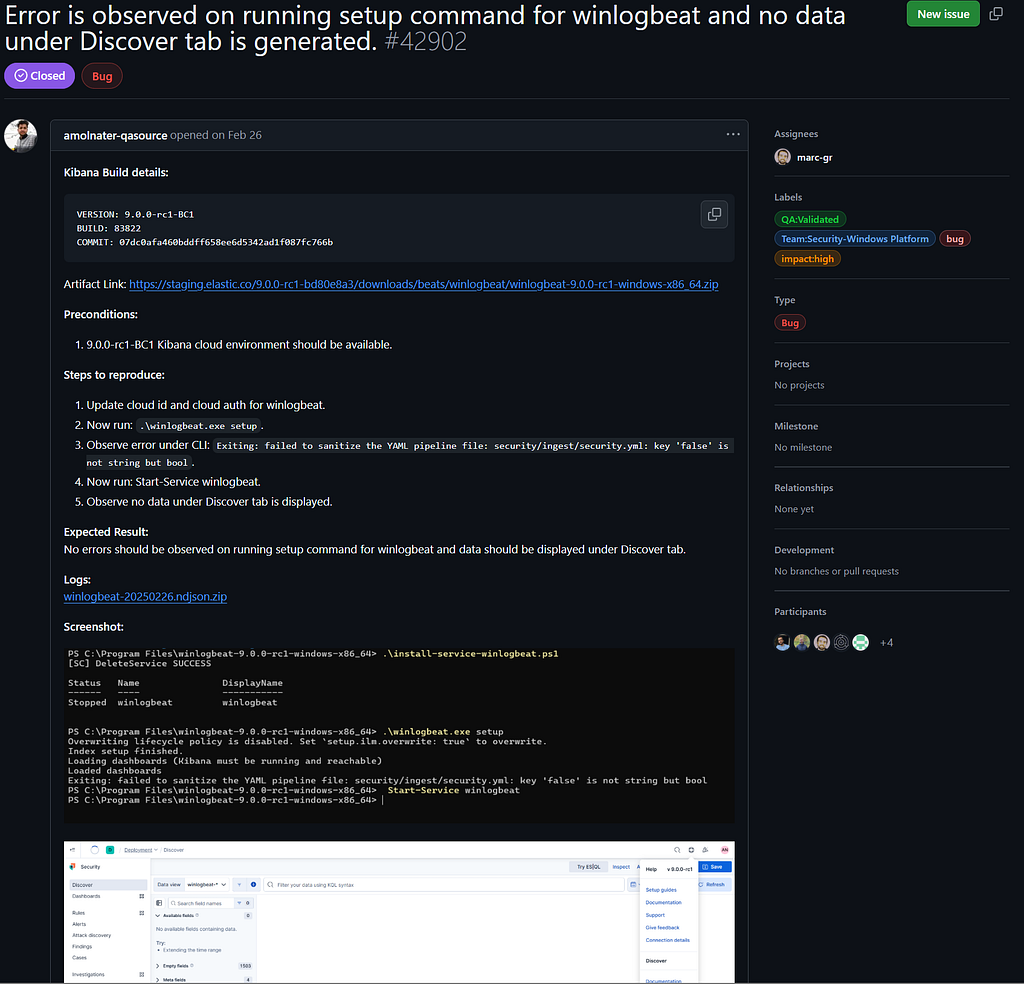
To bypass this until further updates head to https://www.elastic.co/downloads/past-releases#winlogbeat and grab version 8.17.2.
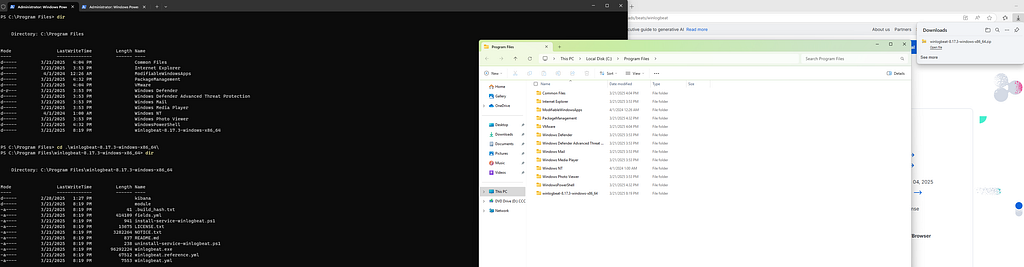
Open PowerShell as Administrator and run:
PowerShell.exe -ExecutionPolicy UnRestricted -File .\install-service-winlogbeat.ps1

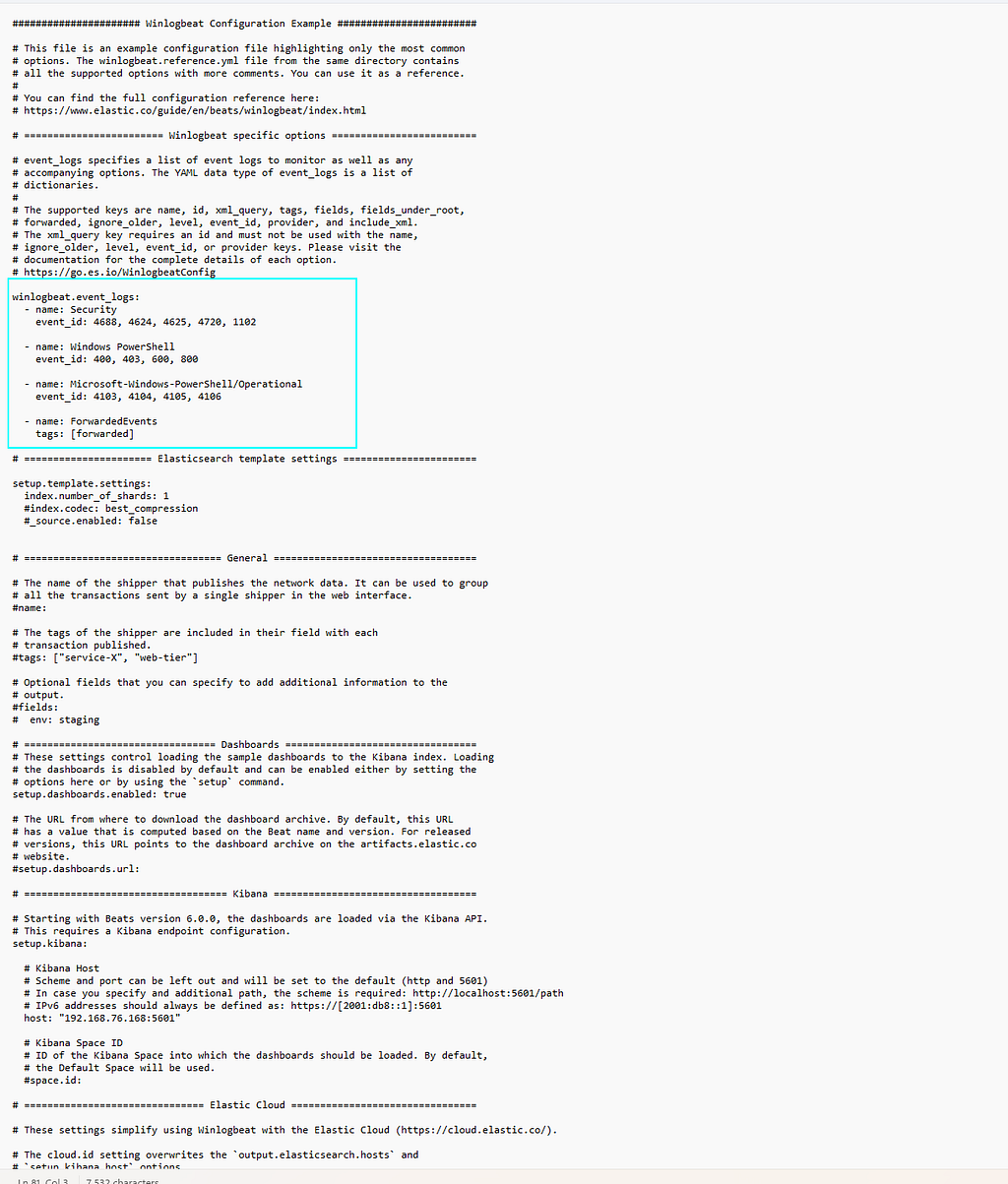
Open winlogbeat.yml in your editor and specify which Windows Event Logs you want to collect.
Recommended Event IDs:
- 4688 — New process creation
- 4624 — Successful login
- 4625 — Failed login
- 4720 — New user account created
- 1102 — Audit log cleared
- etc, etc. There are a lot of important Event IDs to consider.
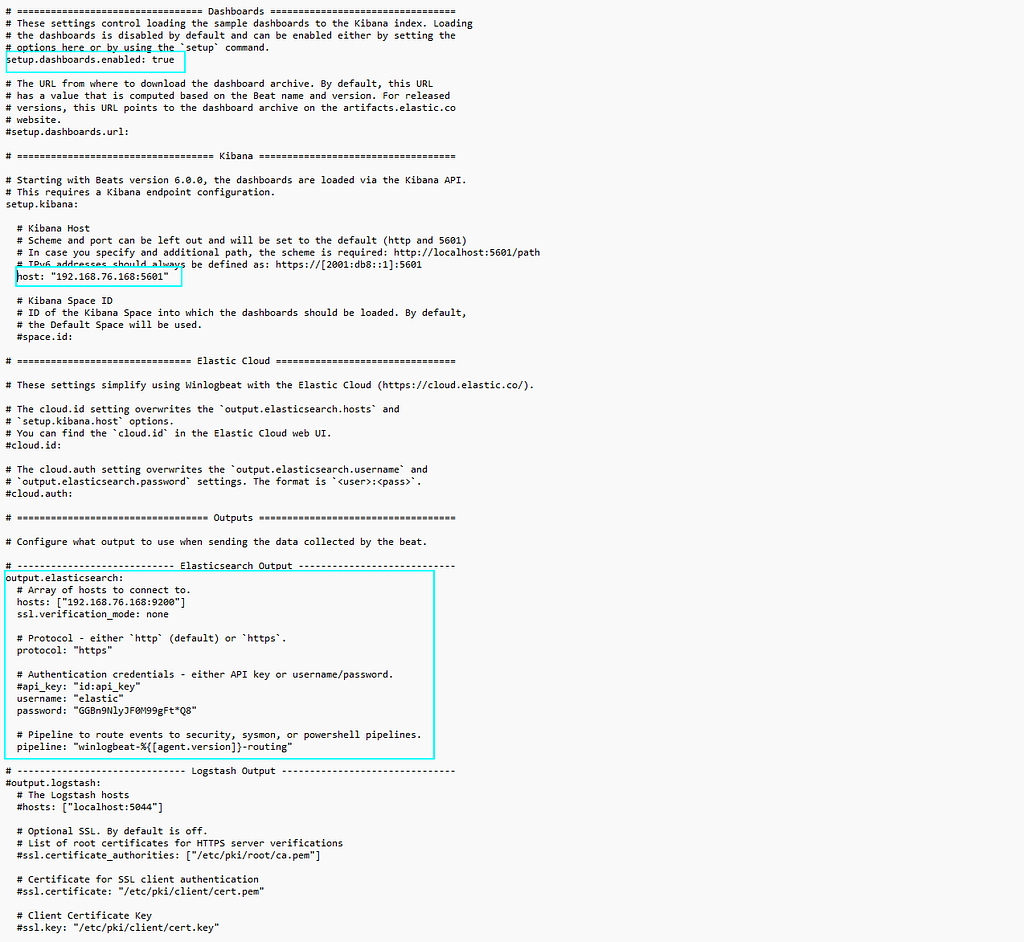
In the same config file, update the output.elasticsearch section like this:
ssl.verification_mode: nonedisables certificate checks (only for testing or internal setups).protocol: "https"ensures encrypted transmission.
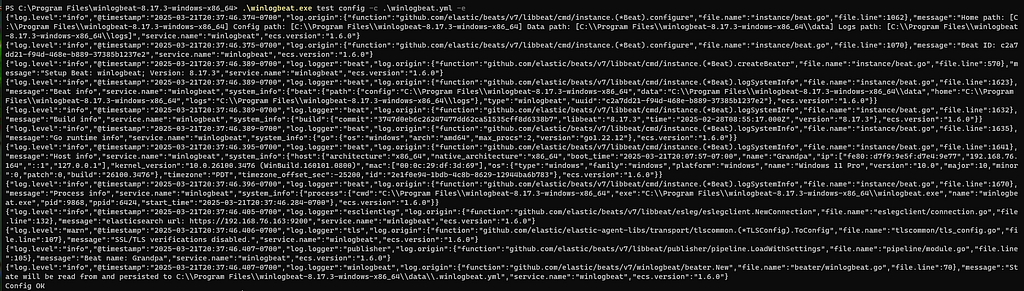
Run the following from the Winlogbeat directory in order to test the configuration, ideally, you should see a CONFIG OKmessage at the bottom left.
.\winlogbeat.exe test config -c .\winlogbeat.yml -e
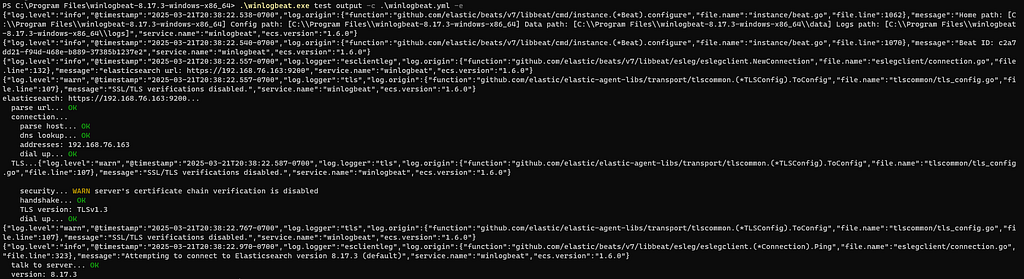
.\winlogbeat.exe test output -c .\winlogbeat.yml -e
Now, let's start the winlogbeat service.
Start-Service winlogbeat
Get-Service winlogbeat

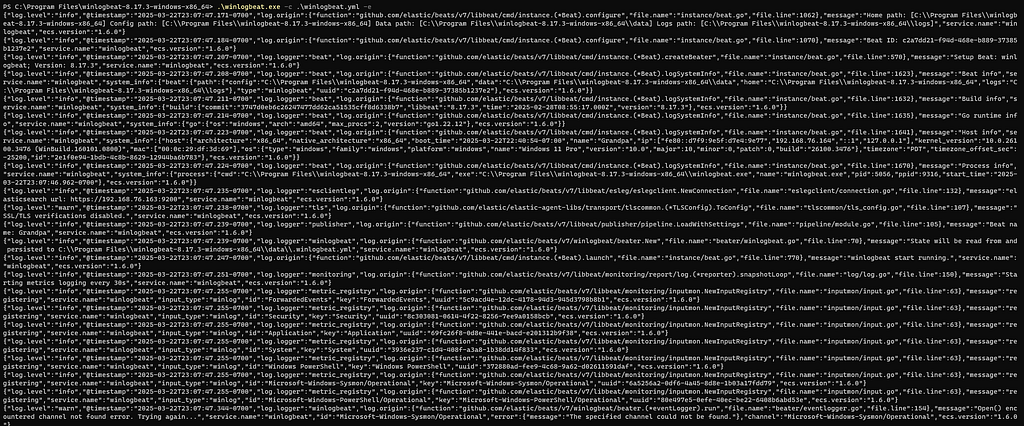
For live logs in the terminal (quick insight if there's any errors):
.\winlogbeat.exe -c .\winlogbeat.yml -e
Head over to Kibana and check Discover or Dashboard to confirm that logs are being received from the Windows machine:
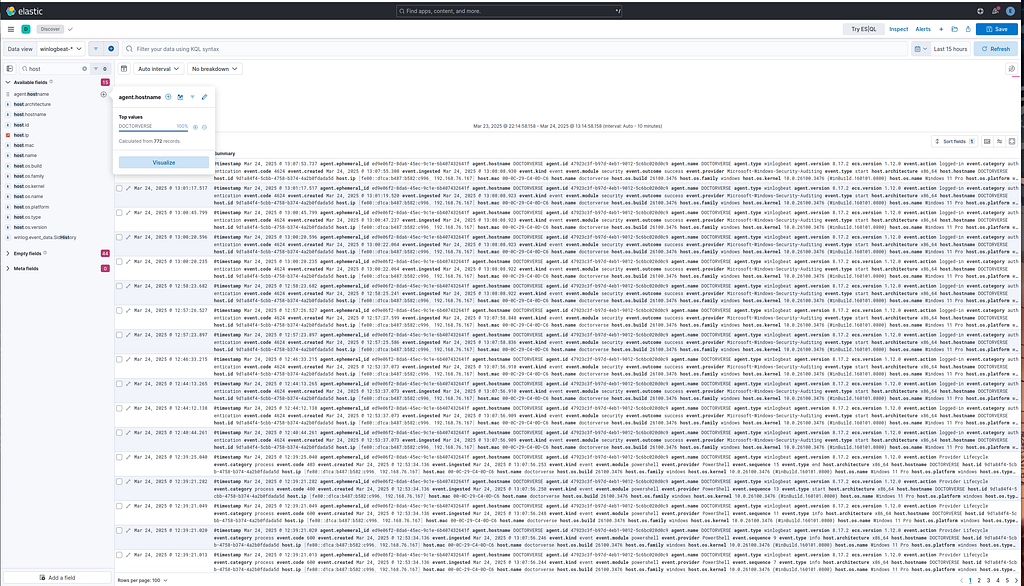
 Waiting for the logs to ingest
Installing Filebeat
Add elastic’s GPG key, add the elastic repository and finally update and install filebeat.
wget -qO - https://artifacts.elastic.co/GPG-KEY-elasticsearch | sudo gpg  --dearmor -o /usr/share/keyrings/elastic-keyring.gpg

echo "deb [signed-by=/usr/share/keyrings/elastic-keyring.gpg] https://artifacts.elastic.co/packages/8.x/apt stable main" | sudo tee /etc/apt/sources.list.d/elastic-8.x.list

sudo apt update && sudo apt install filebeat
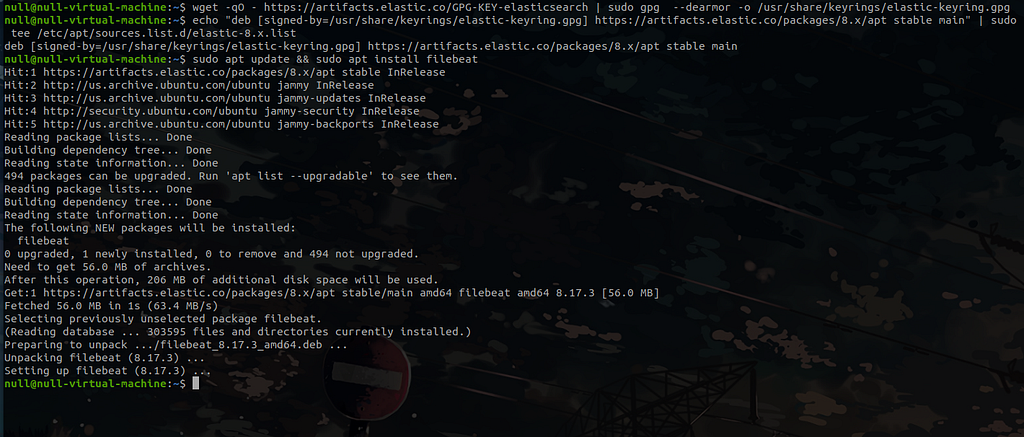
The next step is to edit the filebeat configuration file(by default, Filebeat reads from /var/log/*.log):
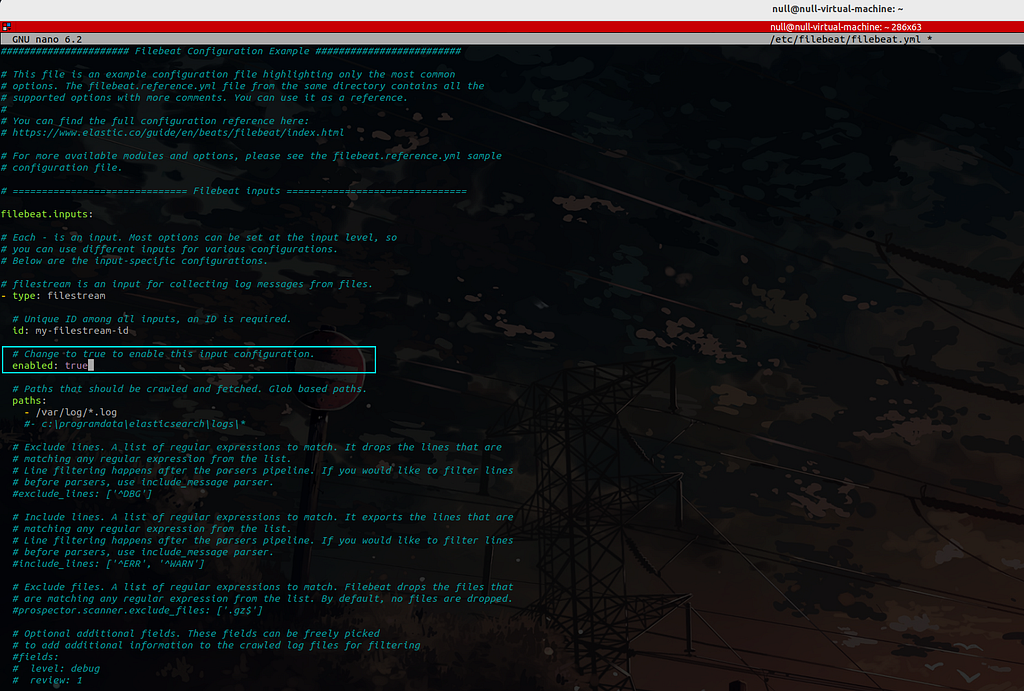
Now, we need to edit the file to send logs directly to elasticsearch with the edits below**.**
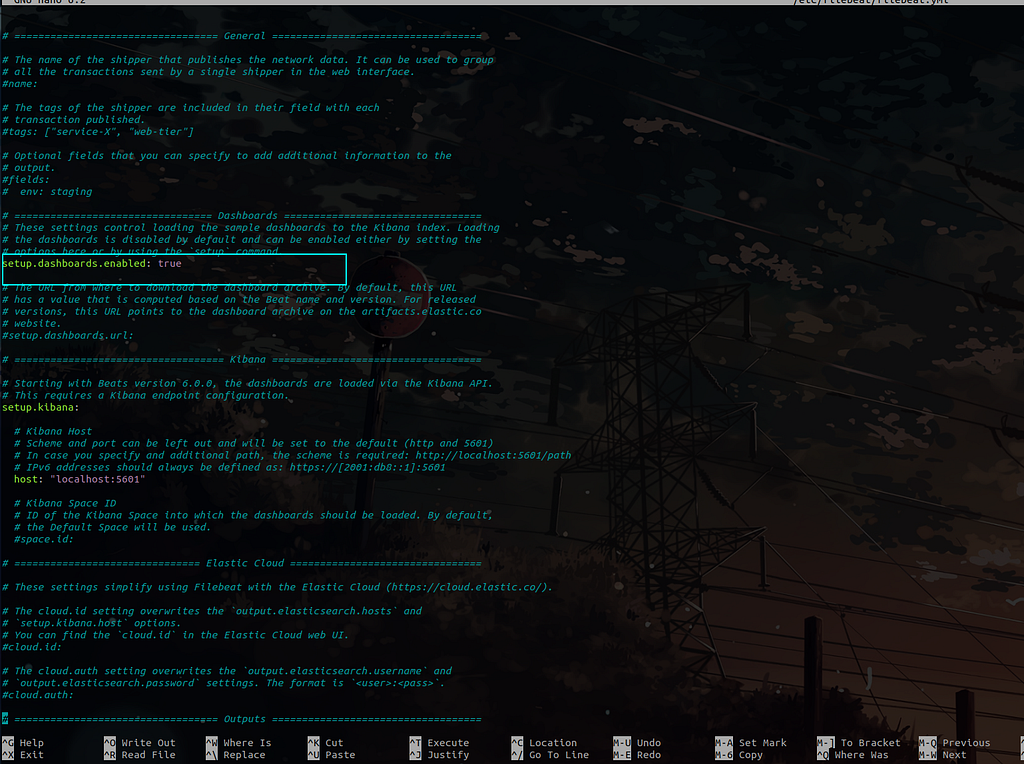
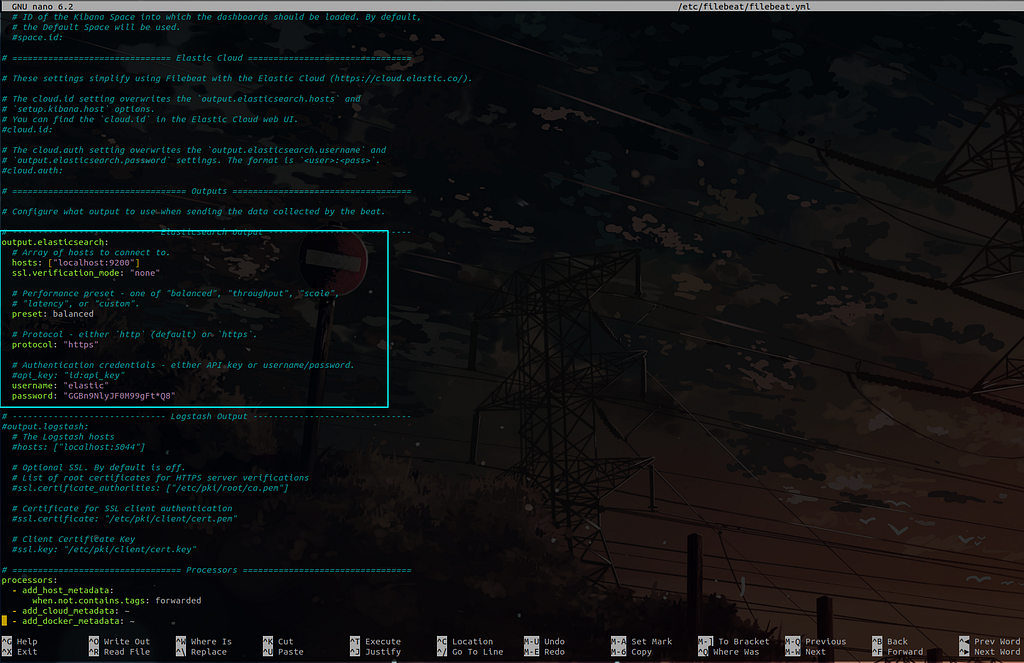
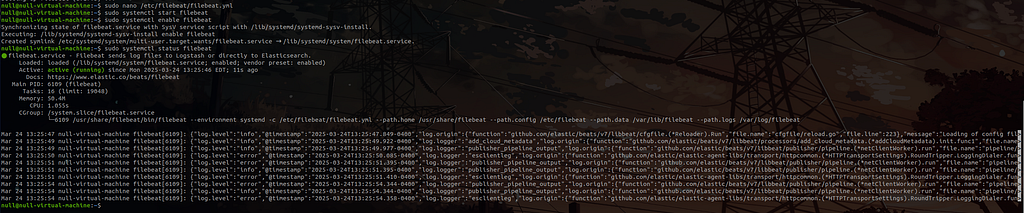
Start the filebeat service and configure it to launch automatically at system startup.
sudo nano /etc/filebeat/filebeat.yml
sudo systemctl start filebeat
sudo systemctl enable filebeat
Now, let’s verify whether the logs are being displayed in ELK:
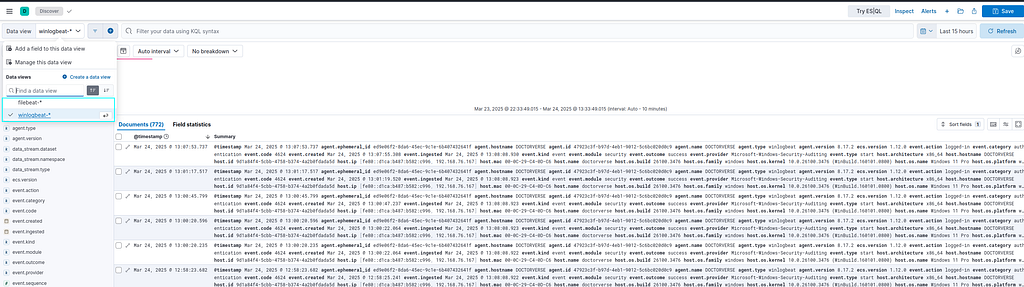
Success!!
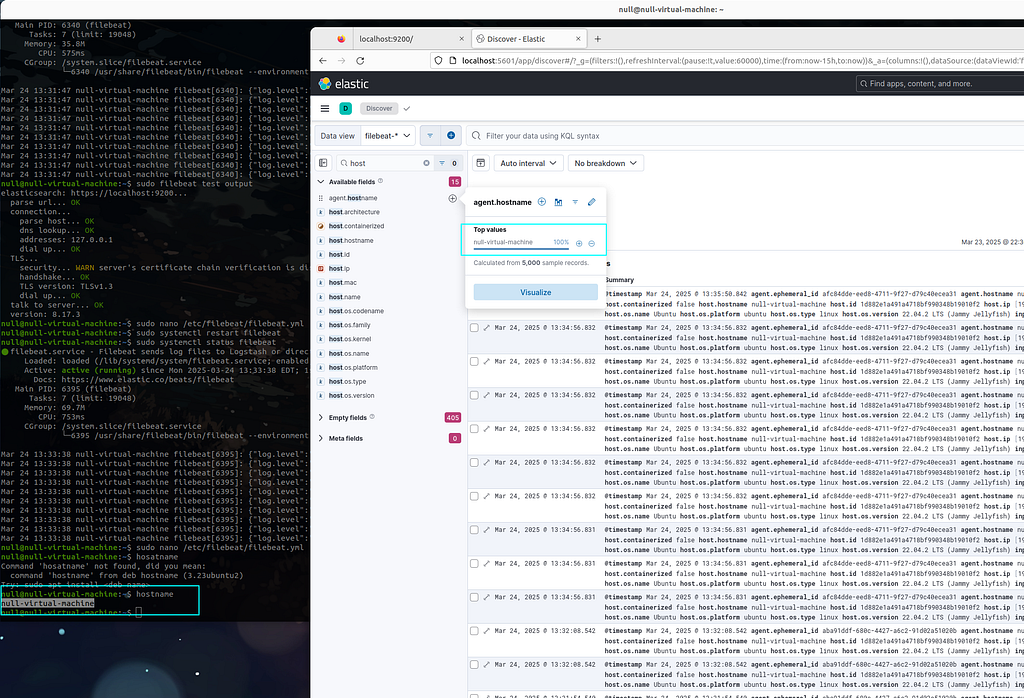
 can we begin the fun part now?